-Feb-15-2023-02-29-15-7102-PM.png?width=120&height=40&name=Untitled%20design%20(8)-Feb-15-2023-02-29-15-7102-PM.png)
TL;DR — Casa supports six hardware device families: Trezor, Ledger, Coldcard, Passport, Keystone, and YubiKey. Trezor and Ledger are the most widely used and support both BTC and ETH vaults. Coldcard, Passport, and Keystone are Bitcoin-only and communicate via QR code or MicroSD card (airgapped). YubiKey is the simplest option and can be purchased directly through Casa during signup. If you are a Premium or Private Client member, Casa sends you the hardware devices you need as part of your welcome package.
How a hardware device fits into your Casa vault
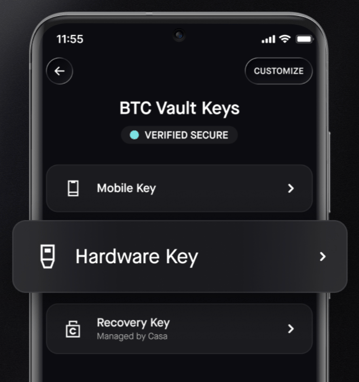
A Casa vault uses multisig (requiring more than one key to authorize a transaction) to protect your bitcoin and ether. In a 3-key vault, you need 2 of 3 keys to send funds. In a 5-key vault, you need 3 of 5 keys. One of these keys is your hardware key, a signing key held on a physical hardware device that you control. Another is your mobile key, stored on your phone. The third is the Casa Recovery Key, which Casa holds offline on your behalf as a backup, but which cannot be used alone to move your funds.
The hardware device you choose determines how you perform health checks (verifying a key is accessible and functional) and signing (the act of a key authorizing a transaction). Different devices connect to your computer in different ways — via USB cable, via QR code, or via MicroSD card — and not all devices support both BTC and ETH vaults.
Device comparison at a glance
The table below compares every hardware device currently compatible with Casa. Use it to narrow your choice before reading the device-specific sections that follow.
| Device | Connection | BTC vault | ETH vault | Airgapped | Best for |
|---|---|---|---|---|---|
| Trezor Safe 3 | USB | ✓ | ✓ | No | Most members; straightforward setup |
| Trezor Model T | USB | ✓ | ✓ | No | Members who want a touchscreen |
| Ledger Nano S Plus | USB | ✓ | ✓ | No | Budget-friendly; BTC + ETH support |
| Ledger Nano X | USB | ✓ | ✓ | No | Members who want Bluetooth capability |
| Ledger Flex | USB | ✓ | ✓ | No | Touchscreen; BTC + ETH support |
| Coldcard Mk4 | MicroSD card | ✓ | ✗ | Yes | Security-focused; BTC only |
| Coldcard Mk5 | MicroSD card | ✓ | ✗ | Yes | Latest Coldcard; BTC only |
| Coldcard Q | MicroSD card | ✓ | ✗ | Yes | QWERTY keyboard; SD card signing only |
| Passport (V1 / Batch 2) | QR code | ✓ | ✗ | Yes | Airgapped with camera-based QR signing |
| Keystone Pro | QR code | ✓ | ✗ | Yes | Airgapped with large touchscreen |
| YubiKey 5C NFC | USB | ✓ | ✓ | No | Simplest setup; no seed phrase needed |
| Security Key C NFC | USB | ✓ | ✓ | No | Budget-friendly YubiKey alternative |
Important note on Keystone: Only the Keystone Pro (previous version) is currently compatible with Casa. The newest Keystone 3 Pro is not compatible. The Keystone Pro is no longer sold by the manufacturer, so you should not purchase a new Keystone device specifically for Casa use unless you can confirm it is the compatible model.
Which device is right for you?
If you want the simplest setup
Choose a YubiKey. It is a small USB security key with no screen and no companion software to install. You plug it in, set a PIN, and you are done. Casa offers YubiKeys for purchase during signup for Standard members ($29 + shipping). YubiKey requires Chrome browser on a desktop or laptop running Windows 11 or later. Yubikeys support both Casa BTC and ETH vaults.
Keep in mind that when using a single Yubikey for both BTC and ETH vaults, the device will generate two separate/unique seed phrases, one for each asset type.
If you need both BTC and ETH vault support
Choose a Trezor or Ledger device. These device families support both Casa BTC and ETH vaults. Both connect via USB and require a companion desktop application (Trezor Suite for Trezor, Ledger Live for Ledger) to be installed and running during signing and health checks.
If maximum security is your top priority
Choose an airgapped device: Coldcard, Passport, or Keystone Pro. An airgapped device (one that communicates via QR code or MicroSD card only, never USB) never connects directly to your computer, which eliminates an entire category of potential attack. These devices are BTC-only.
If you are a Premium or Private Client member
You do not need to purchase hardware devices separately. Casa sends you a welcome package that includes all the hardware devices required for your vault setup, along with complimentary device replacement when needed.
If you are a Standard member, you must provide your own hardware device for use as one of the keys in your 3-key vault.
Device-by-device details
Trezor (Safe 3 and Model T)
Trezor devices connect via USB and work with both BTC and ETH Casa vaults. During signing and health checks, you must have the Trezor Suite desktop application installed and running on your computer. The Trezor Safe 3 uses physical buttons; the Model T has a colour touchscreen for entering your PIN directly on the device. Both require a seed phrase (a 12- or 24-word backup of your hardware key) during initial setup.
Purchase: https://trezor.io
Setup guide: Setting up Trezor Safe 3 for use with Casa · Setting up Trezor Model T for use with Casa
Ledger (Nano S Plus, Nano X, and Flex)
Ledger devices connect via USB and work with both BTC and ETH Casa vaults. You must have Ledger Wallet (formerly known as Ledger Live) installed and open during signing and health checks so that your browser can communicate with the device. The Nano S Plus is the most compact and affordable option. The Nano X adds Bluetooth. The Flex has a large touchscreen.
Purchase: https://ledger.com
Setup guide: Setting up Ledger for use with Casa
Coldcard (Mk4, Mk5, and Q)
Coldcard devices are airgapped (communicating via MicroSD card only, never USB). They are BTC-only, you cannot use a Coldcard for an ETH vault. Signing and health checks are performed by transferring data on a MicroSD card between the Coldcard and your computer. The Coldcard Q model also has a full QWERTY keyboard but does not support QR code signing with Casa, only MicroSD card signing is supported.
Purchase: https://store.coinkite.com
Setup guide: Setting up Coldcard for use with Casa
Passport (V1 and Batch 2 / Passport Core)
Passport devices by Foundation are airgapped (communicating via QR code only, never USB). They are BTC-only. Signing and health checks use the device's built-in camera to scan QR codes displayed in the Casa app, and the device displays QR codes on its own screen for your computer to scan. Passport Batch 2 has been renamed to Passport Core.
Purchase: https://foundationdevices.com
Setup guide: Setting up Passport for use with Casa
Keystone (Pro only)
Keystone Pro devices are airgapped (communicating via QR code only, never USB). They are BTC-only and feature a large touchscreen. Only the Keystone Pro is compatible with Casa. The newer Keystone 3 Pro is not supported. Because the Keystone Pro is no longer available from the manufacturer, it is not recommended as a new purchase for Casa.
Setup guide: Setting up Keystone for use with Casa
YubiKey (5C NFC and Security Key C NFC)
YubiKey devices by Yubico are small USB security keys. They are the simplest devices to set up with Casa, there is no companion application to install. All signing actions (health checks, transaction signing, adding the device to your vault) must be done using the Chrome browser on a desktop or laptop computer running Windows 11 or later. Your YubiKey must have firmware version 5.5 or higher. YubiKey firmware cannot be updated, so if your device is below version 5.5, you will need to purchase a new one.
Purchase: https://yubico.com — or purchase directly through Casa during signup for $29 + shipping.
Setup guide: Adding YubiKey to your Casa vault
A note on seed phrases in a Casa vault
Most hardware devices generate a seed phrase (a 12- or 24-word backup of the device's private key) during initial setup. In a traditional single-key wallet, losing this phrase means losing access to your funds. In a Casa vault, the situation is different: because your vault uses multisig, any single lost key can be replaced with a new one through a key rotation (replacing one key in the vault with a new one), as long as you still have access to the remaining keys in your signing quorum (the minimum number of keys required to send bitcoin).
For this reason, Casa considers keeping a copy of the seed phrase optional for a 3-key vault and recommends keeping a copy of only one seed phrase for a 5-key vault. YubiKeys do not require a seed phrase at all during setup with Casa.
For more details on seed phrases and how they work, see: What is a seed phrase?
What you need to get started
To set up your hardware device with Casa, you will need:
- The Casa app — downloaded on your iPhone or Android device.
- A compatible hardware device — from the list above.
- A computer — running a supported operating system (Windows 11+, macOS Catalina+) with the Chrome browser installed.
- The correct cable or adapter — for USB-connected devices.
- Companion software (if applicable) — Trezor Suite for Trezor devices, Ledger Wallet for Ledger devices. YubiKey, Coldcard, Passport, and Keystone do not require companion software.
For the full setup walkthrough, see: Getting started with the 3-key vault.
Using different device brands in a 5-key vault
If you have a 5-key vault (Premium or Private Client), Casa recommends using hardware devices from different manufacturers for each hardware key slot. This way, a firmware vulnerability in one manufacturer's devices does not compromise more than one of your keys. For example, you might use a Trezor for one hardware key and a Coldcard for another.
Need help choosing?
If you are not sure which device is right for your setup, or if you have a device that is not listed above and want to check compatibility:
-
Standard members: email help@team.casa with a description of your setup and the device you are considering.
-
Premium and Private Client members: reach out to your dedicated Client Advisor directly.