-Feb-15-2023-02-29-15-7102-PM.png?width=120&height=40&name=Untitled%20design%20(8)-Feb-15-2023-02-29-15-7102-PM.png)
TL;DR — Before you can add your Passport (Founders Edition) to your Casa vault, you need to initialize it using the device's own on-screen menus. This involves verifying the device has not been tampered with, setting a PIN, updating firmware via microSD card, and optionally recording your seed phrase (the 24-word backup of the device's private key). The process takes around 20–30 minutes.
Passport is compatible with Casa BTC vaults. It is not currently compatible with Casa ETH vaults.
If you have the newer Passport (Batch 2), go to Setting up Passport (Batch 2) for use with Casa instead.
If your Passport (Founders Edition) is already initialized and the hardware key is already on the device, skip ahead to Adding Passport to your Casa vault.
Not a Casa member yet? You can sign up here.
Passport is a hardware device manufactured by a company called "Foundation," so the device is more commonly referred as a "Passport" device, and less commonly referred to as a "Foundation" device.
What you'll need
- Passport (Founders Edition) and its included batteries
- A microSD card and a way to connect it to your computer (an adapter may be needed)
- A pen and paper to record your seed phrase and backup password
- Around 20–30 minutes
Check for tampering and insert batteries
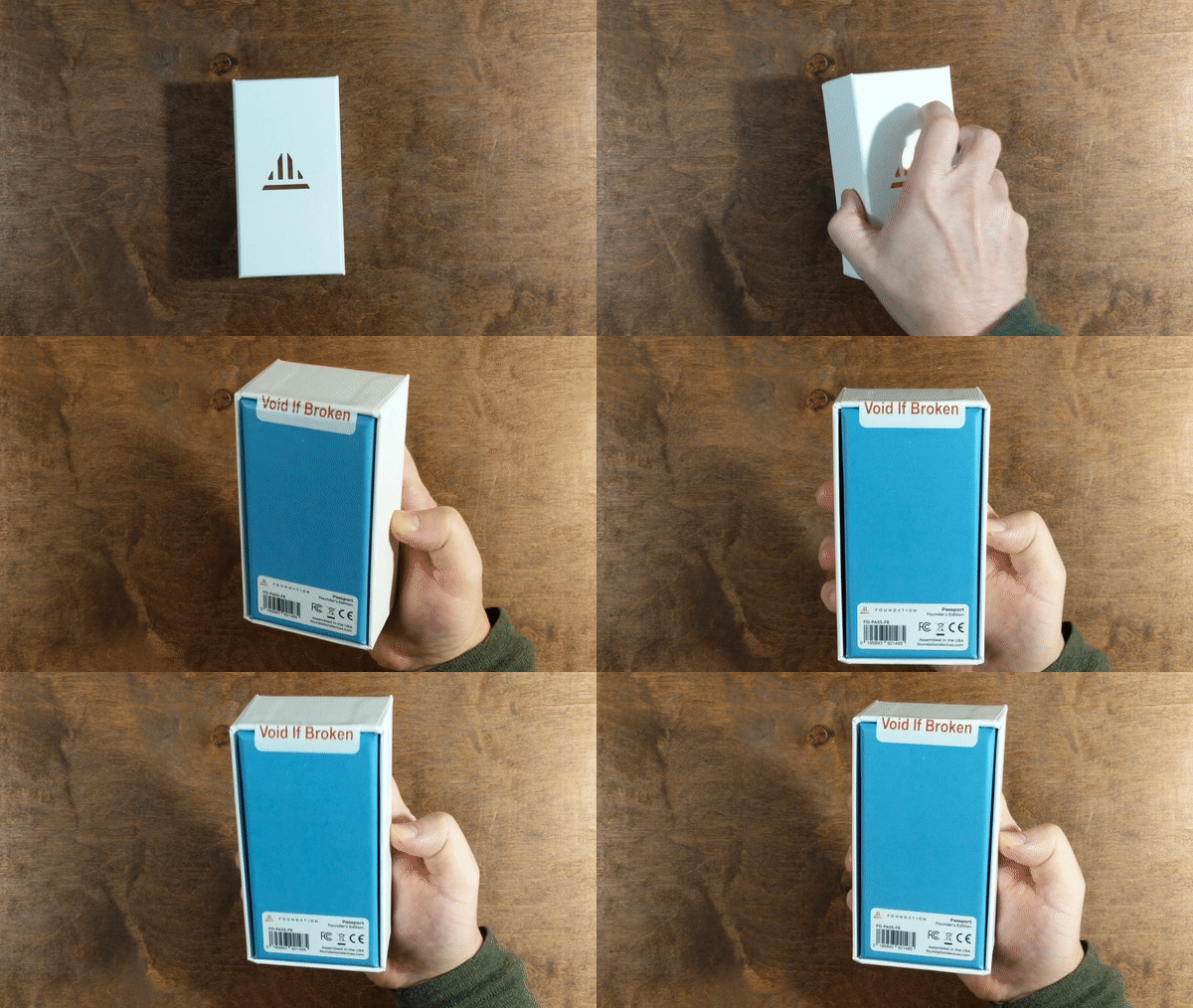
Before powering on your Passport (Founders Edition), inspect the device box to confirm it has not been tampered with during shipping.
If the packaging shows any sign of interference, do not use the device — contact Foundation directly at hello@foundationdevices.com.
Open the box and remove the device. You'll find the device comes with batteries. Pop off the magnetic back and insert the batteries.
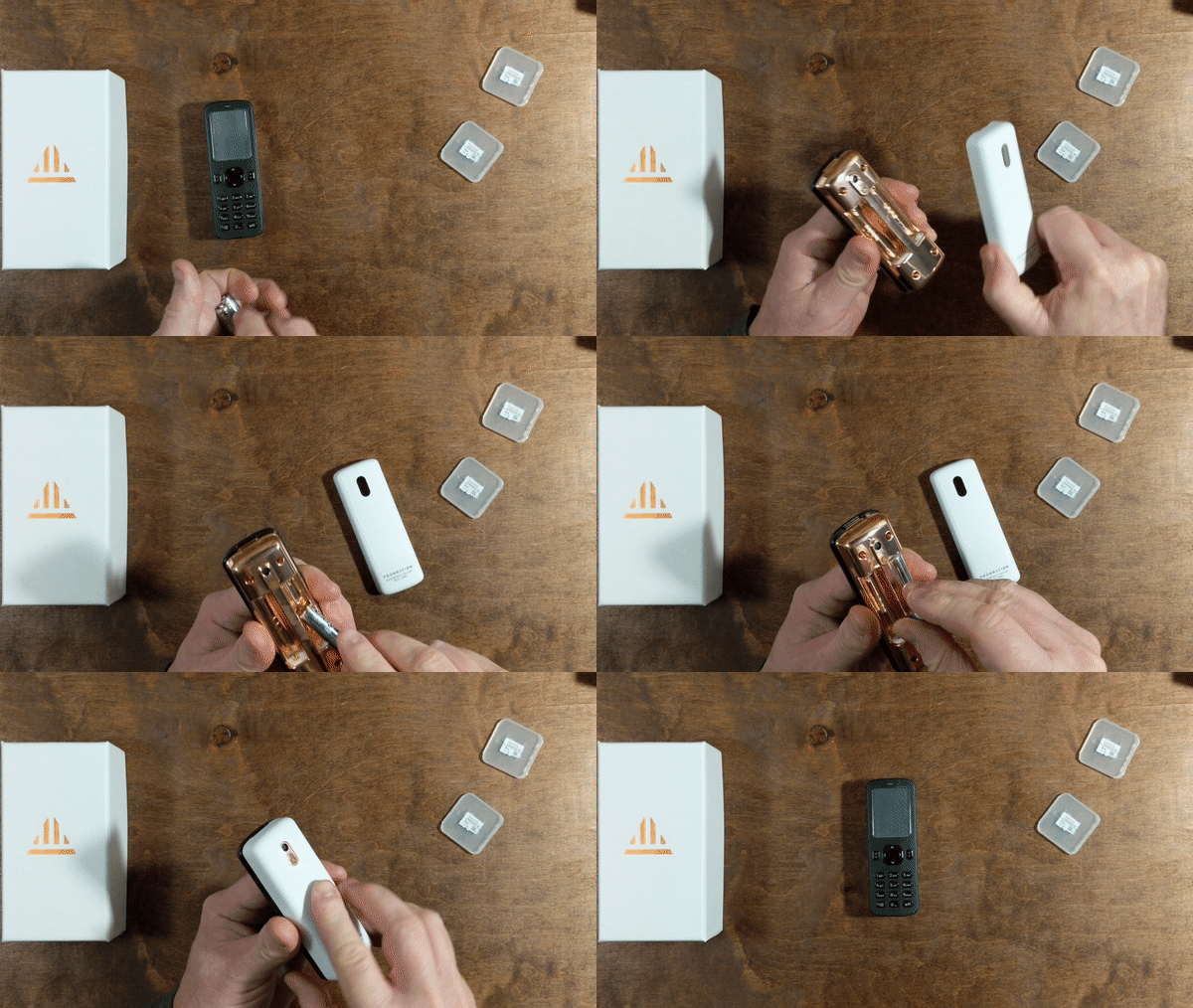
Power on your device by pressing and holding the lower-left button.
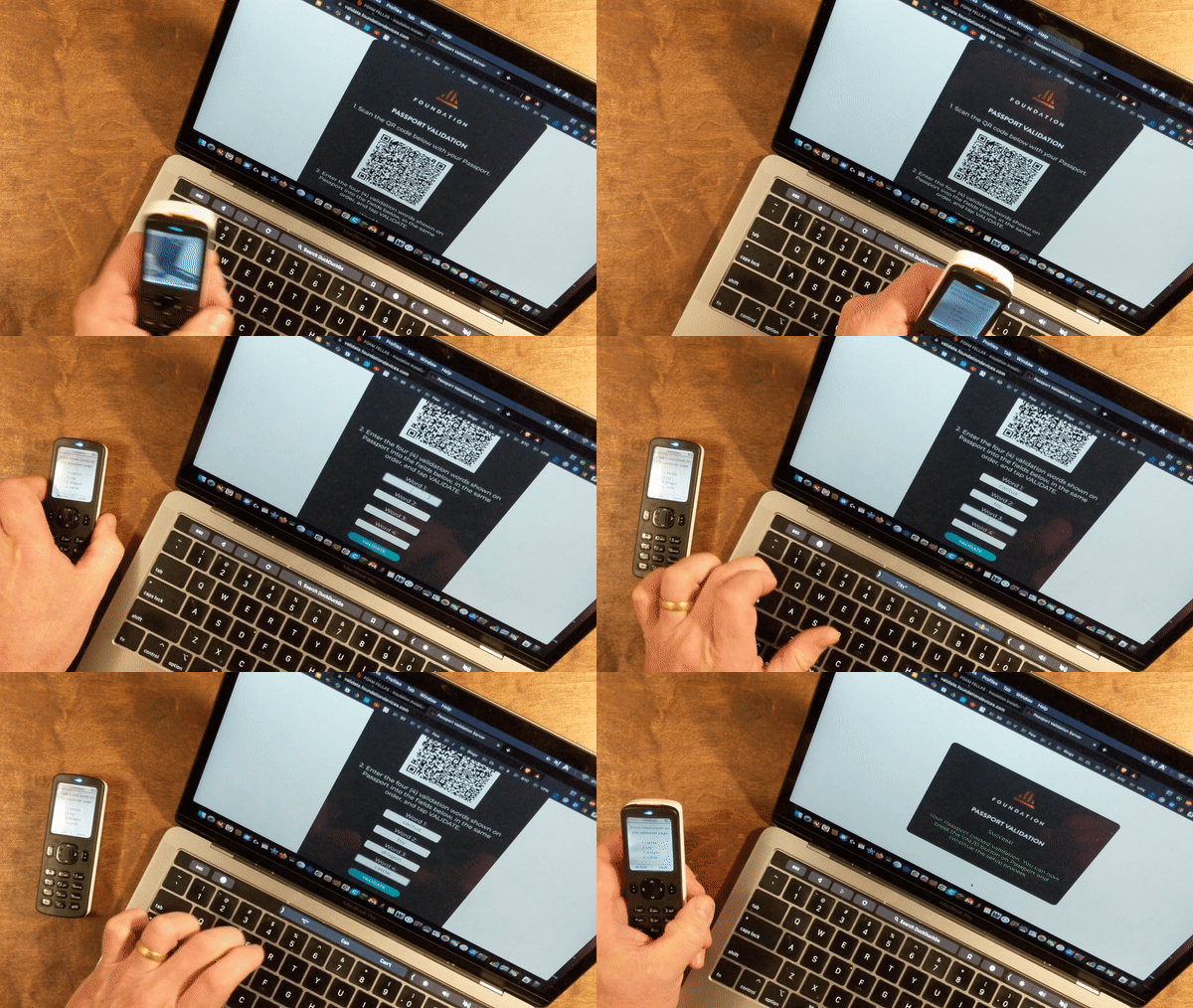
Your Passport (Founders Edition) stores a supply chain private key in its Secure Element, which is used to verify the device is genuine when it first powers on. This process is called Supply Chain Validation.
Supply Chain Validation is critical. If your device fails this check, it may have been tampered with or replaced with a malicious device before it reached you. Do not continue initializing the device if it fails Supply Chain Validation. Contact Foundation directly at hello@foundationdevices.com for assistance.
Scroll through the on-screen text. When you reach the QR code verification step, scan the QR code to confirm your device is authentic.
Set a PIN![]()
You'll set up your PIN code next. The PIN code you set must be between 6-12 digits. It's very important that you remember this code, write it down, or keep in saved in a password manager.
You will need to enter this PIN code each time you unlock your device, and when you send transactions.
After entering the first 4 digits of your PIN, the device will pause and display two Security Words. These words are unique to your device and are designed to alert you if the device is ever swapped or tampered with during use. Write them down and store them with your PIN record. Do not use your device if the Security Words shown do not match the ones you recorded.
After confirming your Security Words, enter the remaining digits of your PIN to complete setup.
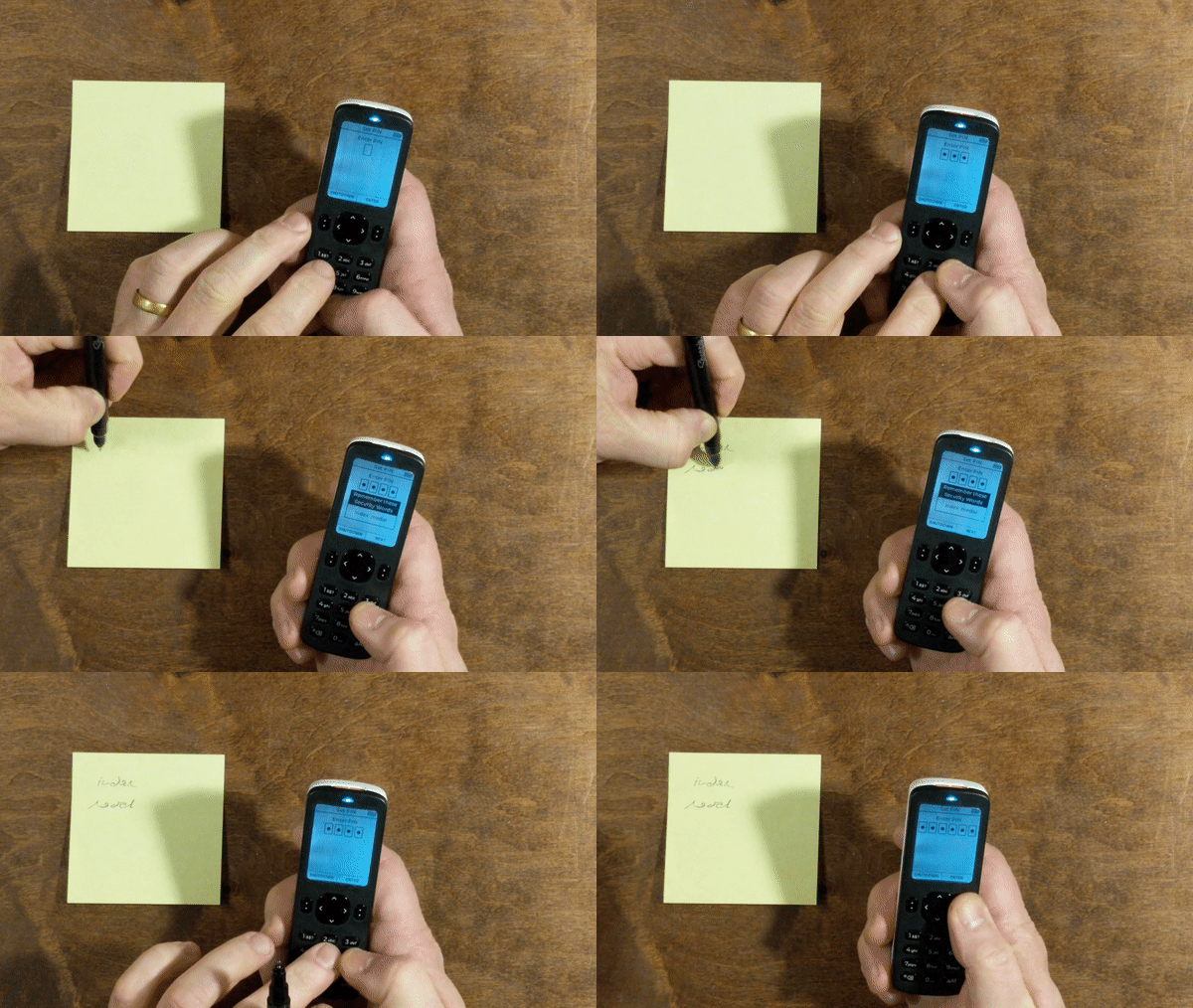
From this point on, every time you unlock the device you will: enter the first 4 PIN digits → verify the 2 Security Words → enter the remaining PIN digits.
Update Firmware
The next step is to download the latest firmware for the device at the following link:
Once downloaded:
- Save the firmware .bin file to your microSD card
- Eject the card from your computer
- Insert the microSD card into your Passport (Founders Edition)
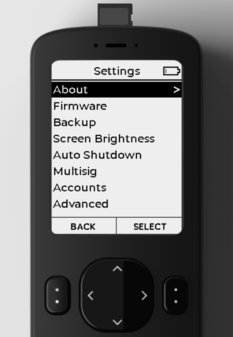
- On the device, go to Settings > Firmware > Update Firmware
- Select the firmware file and confirm the update
The update takes around two minutes. Your device will reboot automatically when complete.
Seed phrase backup
Once you've set your password, you'll then choose "Create New Seed" to generate a recovery phrase or a "Seed Phrase."
Passport will now prompt you to back up your seed to the microSD cards included with your device.
In a Casa vault setup, we consider retaining the seed phrase to be optional.
If you choose to retain the seed phrase, the device creates an encrypted backup file and saves it on each microSD card. The backup is encrypted with your Backup Password, which we recommend storing in a password manager or cloud storage.
When creating an encrypted microSD backup, you will be prompted to record a 6-word phrase for your Backup Password. Note that this phrase is different from a 12, 18, or 24-word mnemonic phrase for bitcoin private keys. MicroSD backup is designed to protect your private keys through a 2FA setup requiring both the Backup Password and a microSD card.
Users who wish to record their 24-word seed on paper or metal can do so at any time in Settings > Advanced > View Seed Words.
If you choose NOT to retain your seed phrase, and are using this device exclusively for your Casa vault, you can just skip the seed phrase backup step.
Enable the Casa extension
Once setup is complete, your device will return to the home screen titled Account.
Scroll left until you reach the Settings screen. Scroll down, select Extensions, and toggle on the Casa extension.
That's it! Your Foundation Passport device is now set up and ready to be added to Casa.
The next step is to follow the instructions for Adding Passport to your Casa vault
Still need help?
If you have followed these steps and are still experiencing an issue:
- Standard members: email help@team.casa with a description of the problem. Include a screenshot of any error message if possible.
- Premium and Private Client members: contact your Client Advisor directly.