-Feb-15-2023-02-29-15-7102-PM.png?width=120&height=40&name=Untitled%20design%20(8)-Feb-15-2023-02-29-15-7102-PM.png)
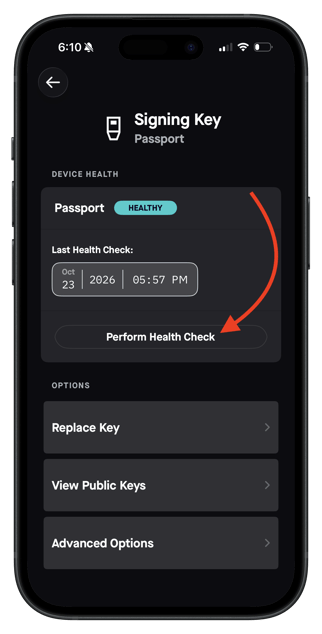
- Log in to the Casa app
- Tap your vault
- Tap the key icon (top-right corner)
- Tap the key your Passport Prime is linked to
- Tap "Perform Health Check."
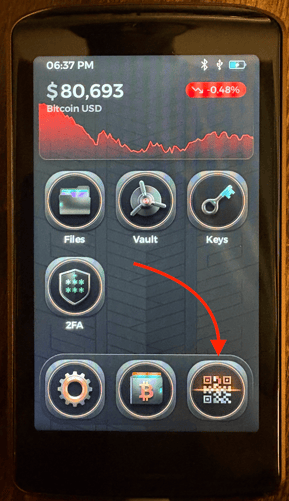
The next screen will ask you to import your vault’s wallet descriptor. If you didn’t do this when you added your device to Casa, do it now: on your Passport Prime, tap the QR code icon in the bottom-right corner to open the scanner, then scan the QR code shown in the Casa app. Once that’s done, tap “Got it, I’m Ready” in the Casa app.
-portrait.png?width=283&height=558&name=File%20(9)-portrait.png)
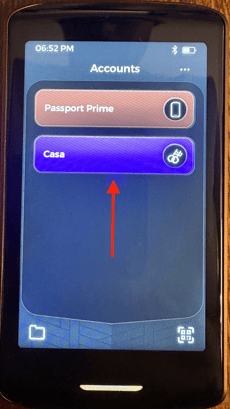
Next, go to the Accounts page on your Passport Prime and select Casa > Health Check > Check with QR Code.
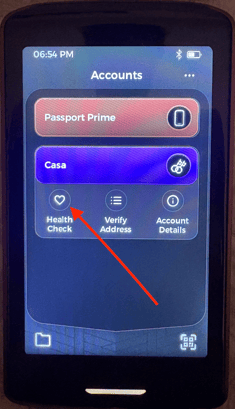
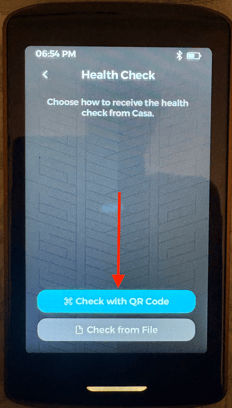
Use your Passport Prime to scan the health check QR code shown in the Casa app.
-portrait-1.png?width=260&height=513&name=File%20(10)-portrait-1.png)
Once your Passport Prime scans the QR code in the Casa app, a second QR code will appear on the Passport Prime’s screen. When you see it, tap “Continue, It’s Scanned” in the Casa app, then use your phone’s camera to scan the QR code on the Passport Prime.
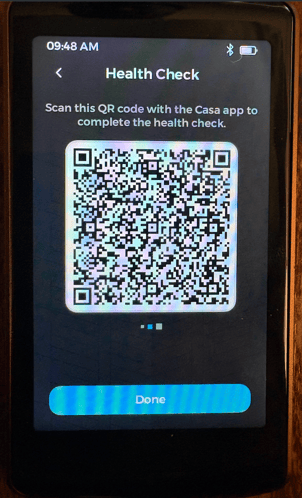
The Casa app will then confirm that your health check was successful.-portrait-1.png?width=345&height=680&name=File%20(11)-portrait-1.png)
Here’s the full process in action: