-Feb-15-2023-02-29-15-7102-PM.png?width=120&height=40&name=Untitled%20design%20(8)-Feb-15-2023-02-29-15-7102-PM.png)
Inviting a Viewer
- Log in to the Casa Dashboard.
- Navigate to User Management.
- Click Invite Viewer.
- Enter the viewer’s email address.
- Select which vault dashboards they can access.
- (Optional) Enable Allow CSV download.
- Click Send Invite.
The viewer receives an email with a link to set up their Casa account and accept the invitation.
Invite links expire after 10 days, but can be resent at any time.
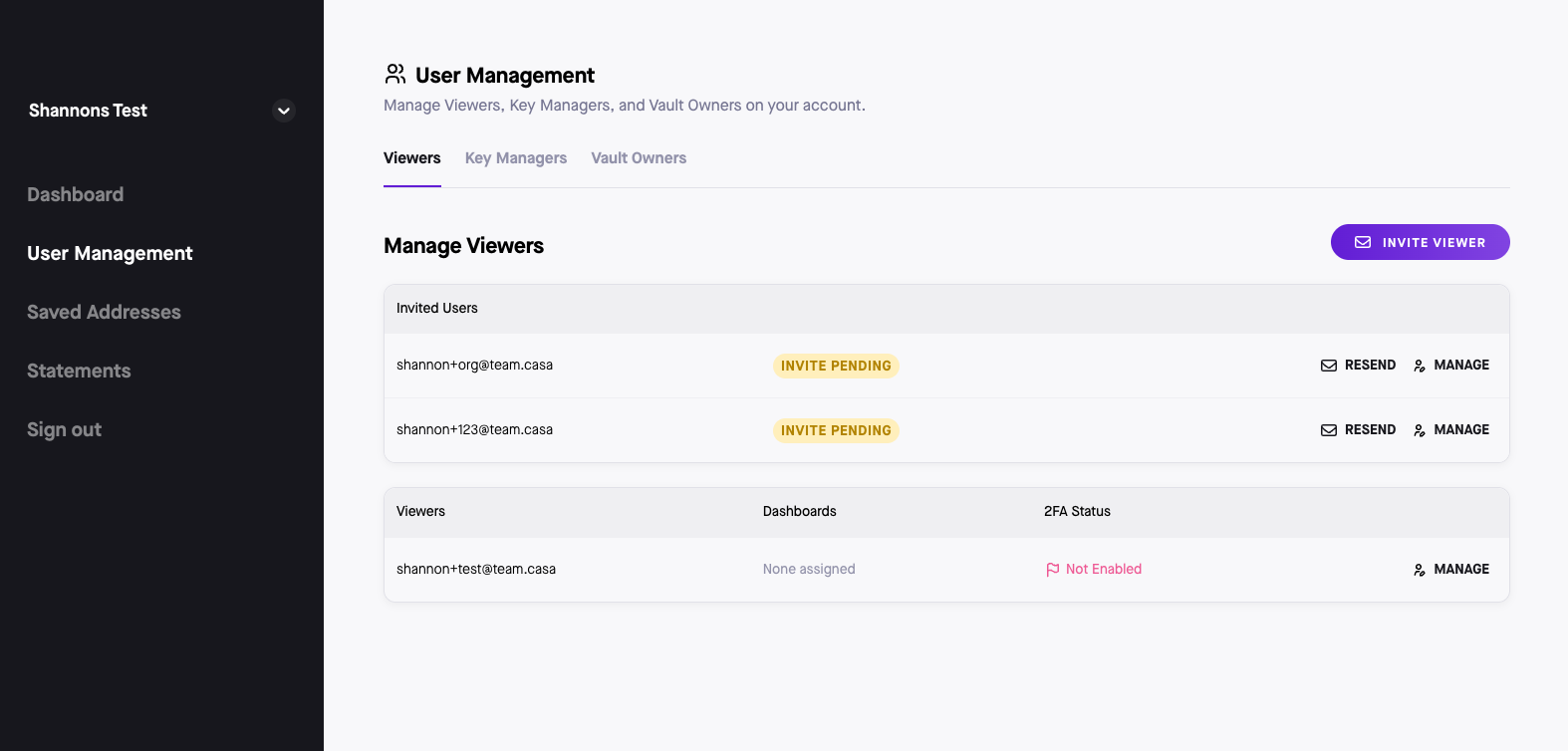
Resending an Invitation (Expired After 10 Days)
If the viewer does not accept the invite within 10 days:
- Go to User Management.
- Locate the viewer with Pending status.
- Click Resend Invite.
This sends a fresh access link, valid for another 10 days. The previous old link will no longer work.
Managing Viewer Access
As the Primary Account Owner, you can update any viewer at any time:
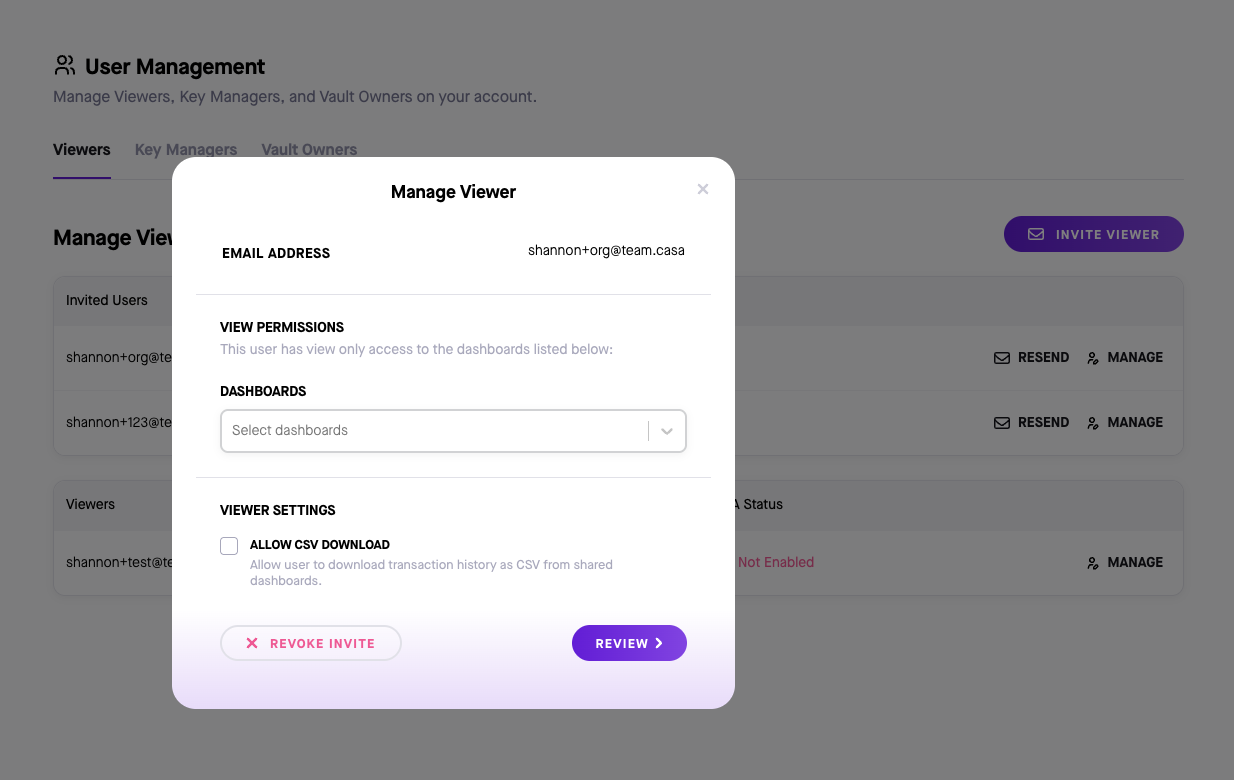
Adjust Vault Access
- Go to User Management.
- Click Manage beside the user.
- Enable or disable specific vault visibility through View Permissions.
Remove Viewer Access
- Select Manage next to the viewer.
- Click Remove Access.
Need Help?
Email help@team.casa for assistance with permissions or viewer access issues.