
TL;DR: A health check verifies that your BitBox02 hardware key is accessible and can still sign (authorize) for your vault. You start it in the Casa app, open the link Casa emails you on a computer, then approve a message signature on your BitBox02. No bitcoin moves, and your private key never leaves the device. The process takes about 5 minutes.
You need to finish adding all the keys to your vault before you can perform a health check. If you have not added your BitBox02 to Casa yet, see Adding BitBox02 to your Casa vault.
What you'll need
- Your BitBox02 and its device password
- A laptop or desktop computer (a mobile phone will not work for this step)
- Chrome browser (recommended)
- The Casa app on your phone
- Access to the email address on your Casa account
Before you start: close the BitBoxApp on your computer if it is open. Your BitBox02 can only connect to one app at a time, so the BitBoxApp will block the connection to Casa.
Step 1: Start the health check in the Casa app
- Sign into the Casa app
- Tap your vault
- Tap the key icon (top-right corner)
- Tap the key your BitBox02 is linked to
- Tap "Perform Health Check"
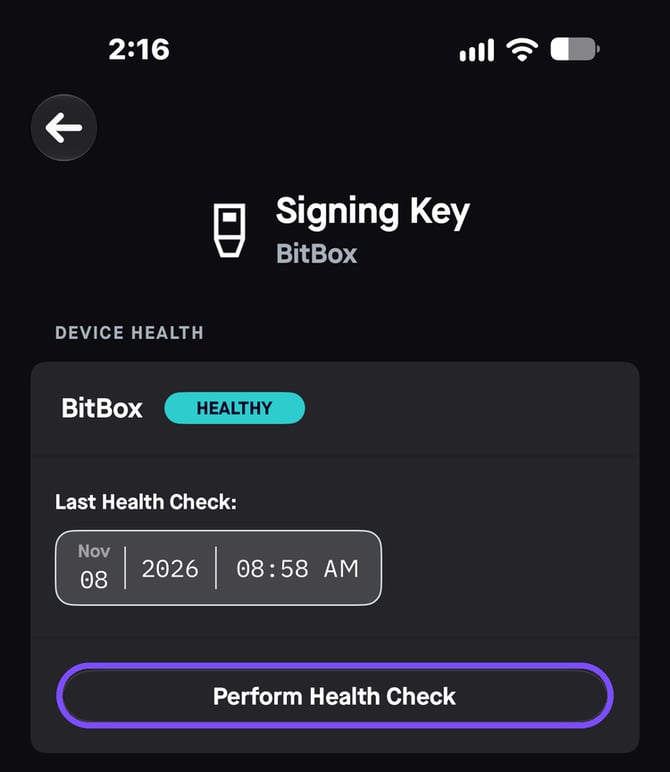
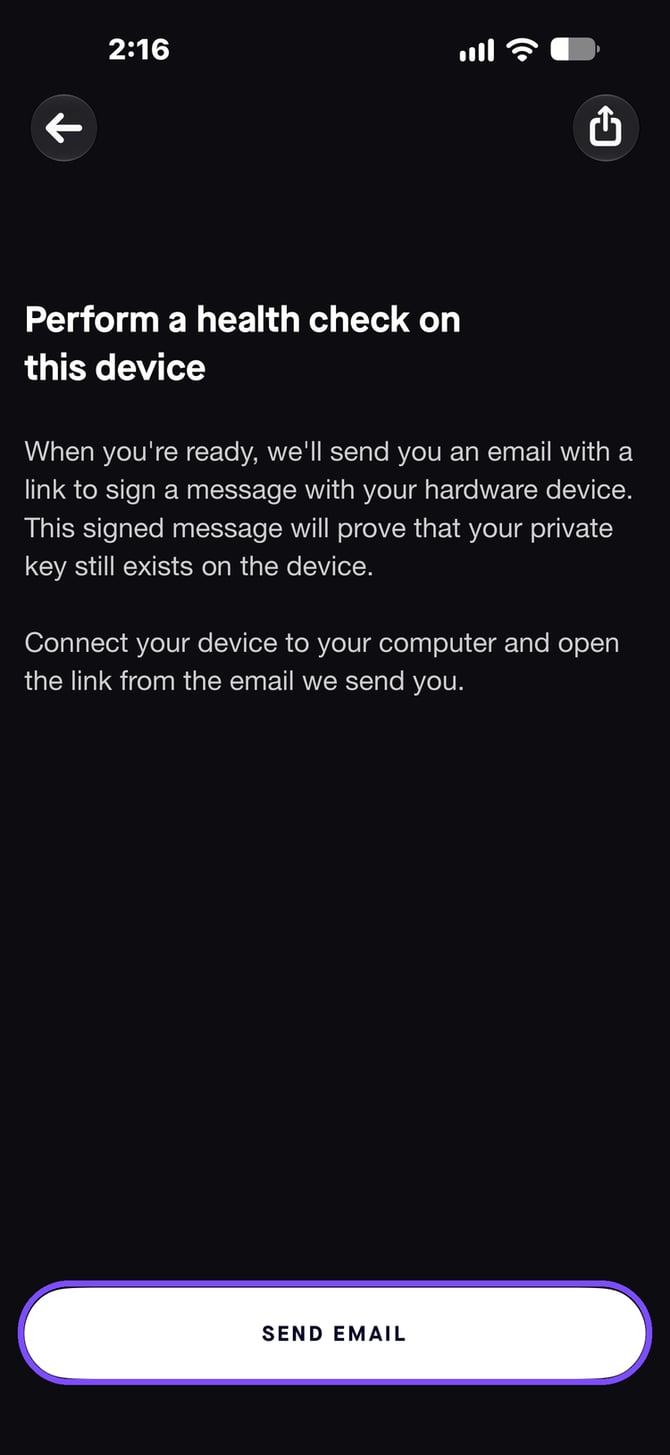
On the next screen, tap "Send Email."
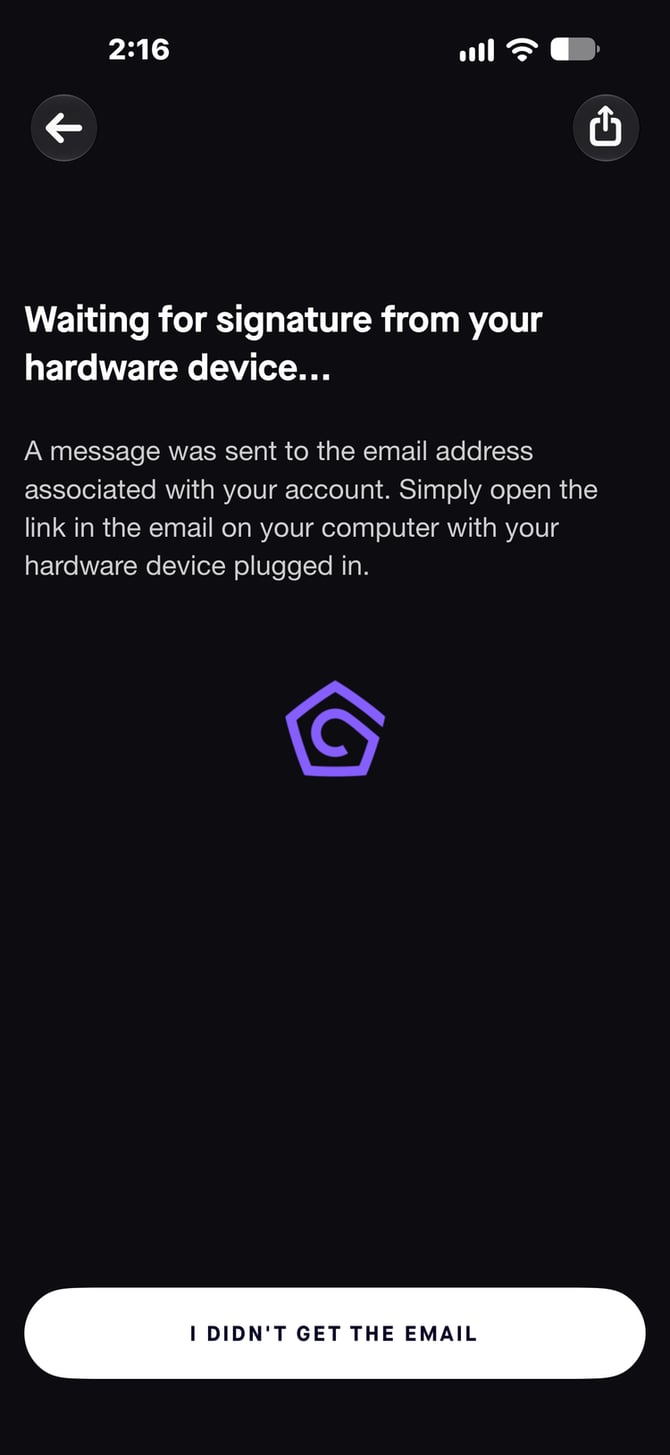
The Casa app will show "Waiting for signature from your hardware device." Leave this screen open while you complete the next steps on your computer.
Step 2: Open the health check link on your computer
Casa will send you an email with a link to sign the health check. The email will come from no-reply@mail.keys.casa. Open the email on your laptop or desktop computer and click "Begin Health Check." We recommend using Chrome.
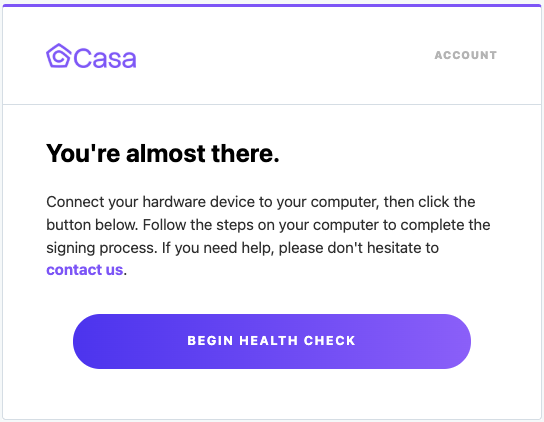
If you don't see the email after a few minutes, check your spam or promotions folder. You can also tap "I didn't get the email" in the Casa app to resend it.
Step 3: Connect your BitBox02
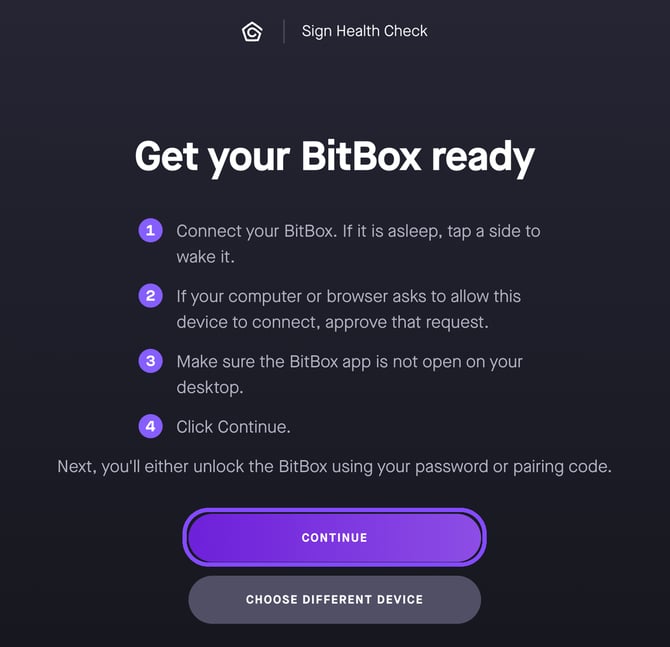
The link opens the "Get your BitBox ready" page. Before you click Continue:
- Plug your BitBox02 into your computer. If the screen is dark, tap either side of the device to wake it.
- If your computer or browser asks for permission to connect to the device, approve the request.
- Make sure the BitBoxApp is closed on your computer.
- Click "Continue."
Step 4: Unlock your BitBox02
Enter your device password directly on the BitBox02 to unlock it.
If this is the first time you have connected your BitBox02 in this browser, a pairing code will appear on your computer screen and on your BitBox02. Check that the two codes match exactly, then confirm on your BitBox02. Pairing confirms that your computer is talking to your device over a secure connection.
Step 5: Approve the signature on your BitBox02
Your BitBox02 will show a "Sign message" request with "Coin: Bitcoin" and "External service key." Tap the arrow on the right side of the screen to continue.
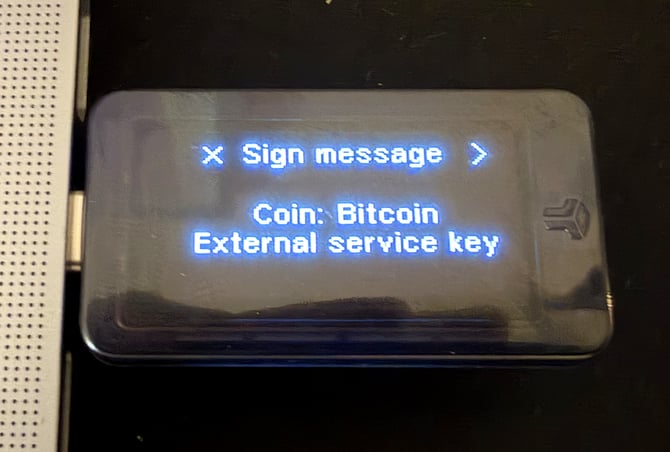
Note: "External service key" is expected. It means the request is coming from a service outside the BitBoxApp, in this case your Casa vault. You can safely continue.
Next, the BitBox02 shows the message being signed: a string of letters and numbers that serves as the unique ID for this health check. Tap the arrow to move through the message, then confirm on the final screen to apply the signature.
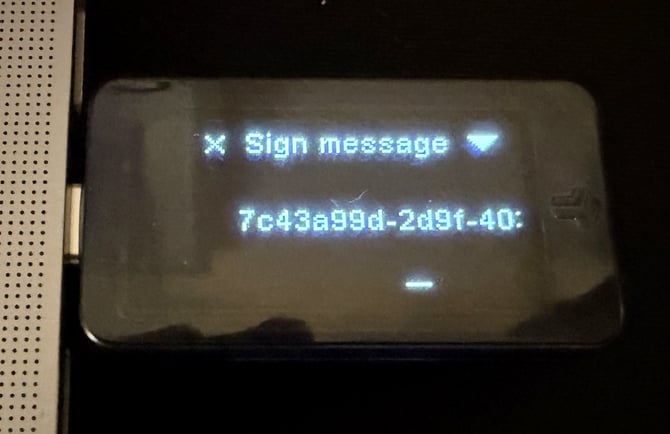
Signing a health check message does not create a transaction and cannot move any bitcoin.
Step 6: Confirm your health check is complete
Once the signature is applied, your browser will show "Great Work." You can now disconnect your BitBox02 and close the browser window.
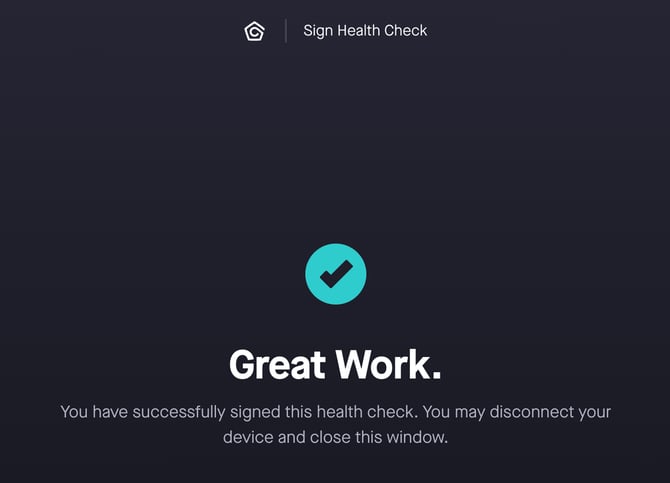
The Casa app will update to show your BitBox02 as Healthy, along with the date of your last health check. Casa recommends performing a health check on each hardware key in your vault at least once every six months.
That's it! Your BitBox02 is verified and standing by, ready to sign when you need it.
Troubleshooting
- The browser doesn't detect your BitBox02: close the BitBoxApp, make sure the device is unlocked, and try again in Chrome. If it still doesn't connect, try a different USB port or cable. See Dongles and connector cables for your hardware device.
- You can't access your email: see How to sign with a hardware device without email access.
- Something else isn't working: see Troubleshooting hardware device issues: where to start.
Still need help?
If you have followed these steps and are still experiencing an issue:
- Standard members: email help@team.casa with a description of the problem. Include a screenshot of any error message if possible.
- Premium and Private Client members: contact your Client Advisor directly.