
Before you begin
Make sure:
- Passkey sync is enabled for iCloud Keychain, Google Password Manager, or 1Password
- For iCloud, iCloud Keychain is enabled and every Apple device you plan to use is signed in to the same iCloud account (Computer and iPhone)
- For Google Password Manager, your Android phone and Chrome browser are signed in to the same Google account (Computer and Android Phone)
- Your phone or computer has a screen lock, Face ID, Touch ID, or fingerprint authentication enabled
- You can create and safely remember a new 6-digit vault-passkey PIN.
The PIN you create is specific to this vault passkey. It is separate from your phone PIN, Casa account password, and provider password.
Add the passkey
- Open the Casa app and select the vault.
- Click on Set up Signing Key or if you are replacing a key, begin from that key’s replacement flow.
- Choose Passkey as the device type, then continue.
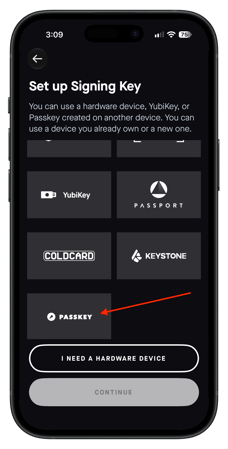
- To connect your vault passkey to your vault, Casa opens the setup link in your phone’s mobile browser. ** For team signers, Casa sends the setup link to that signer.
- Select "Continue in Mobile Browser"
- On the "Set up your key" screen, read the instructions and press "Continue"
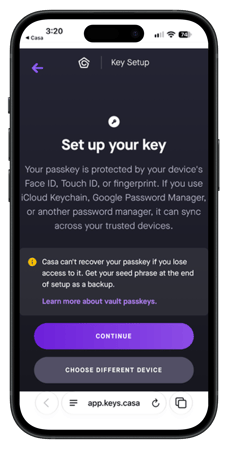
- When your browser asks where to save the passkey, choose a supported synced provider. If necessary, authenticate with your biometric or device screen lock.
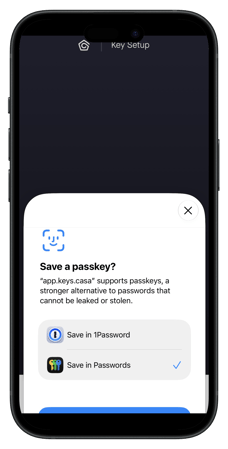
- Create a 6-digit PIN for the vault passkey. Avoid simple values such as repeated or sequential digits.
- Enter the PIN again to confirm it.
- Wait while Casa derives the vault key and adds its public key to the vault.
- On the success screen, select Create Backup. This is strongly recommended. Saving a seed phrase backup will allow you to re-create your vault passkey on another supported hardware device if necessary
- Record both the 12-word seed phrase and the separate 8-word passphrase, then complete the verification steps.
- Return to the Casa app. The app will update when setup is complete.
- Do not create the passkey in private or incognito browsing mode.
- Choose the passkey provider account you intend to keep long term. (iCloud Keychain, Google Password Manager or 1Password)
- Casa allows only one active vault passkey from the same provider in the same vault for the same user.
- Never send your seed phrase, passphrase, PIN, or screenshots of them to Casa or anyone claiming to represent Casa.
If setup does not work
If you see a PRF or browser-support error, update Chrome or Safari and try again.
If Casa says the passkey is not backed up, turn on passkey sync for the provider and create a new passkey.
If Casa says that provider is already in use for the vault, use another supported provider or replace the existing vault passkey first.
If the passkey prompt was dismissed, return to the previous screen and retry. Make sure you complete the biometric or device-lock prompt.