-Feb-15-2023-02-29-15-7102-PM.png?width=120&height=40&name=Untitled%20design%20(8)-Feb-15-2023-02-29-15-7102-PM.png)
Overview
To access your Loan Dashboard, you must:
-
Have an active Casa loan (signed contract and entered into our system)
-
Enable 2FA in the Casa mobile app
-
Log in to the Casa web app using your Casa account
Once these steps are complete, the Loans tab will appear in your dashboard.
Before you can access the Loan Dashboard on the web, 2FA is required.
-
Open the Casa mobile app
-
Go to Membership / Account Settings
-
Follow the prompts to enable Two-Factor Authentication (2FA)
You can choose one of the supported 2FA methods:
-
Authenticator app (TOTP)
-
Passkeys
📘 Learn more:
-
2FA in the Casa App: https://support.casa.io/knowledge/2-factor-authentication-2fa-in-the-casa-app
-
Using Passkeys for Casa 2FA: https://support.casa.io/knowledge/using-passkeys-for-your-casa-2fa
Note: If 2FA is not enabled, you will not be able to access the web dashboard.
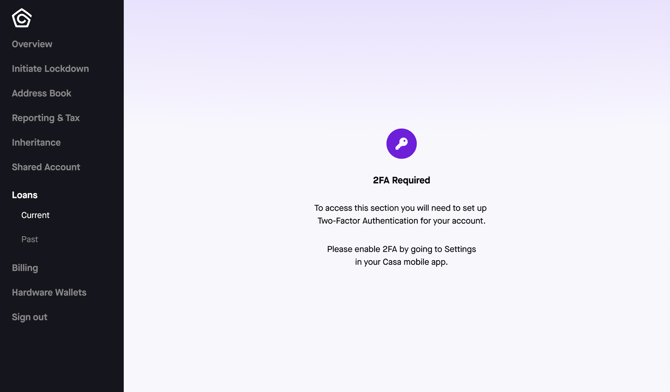
After enabling 2FA, log in to the Casa web app using one of the following links:
-
Enter your Casa account email
-
Complete authentication using your enabled 2FA method
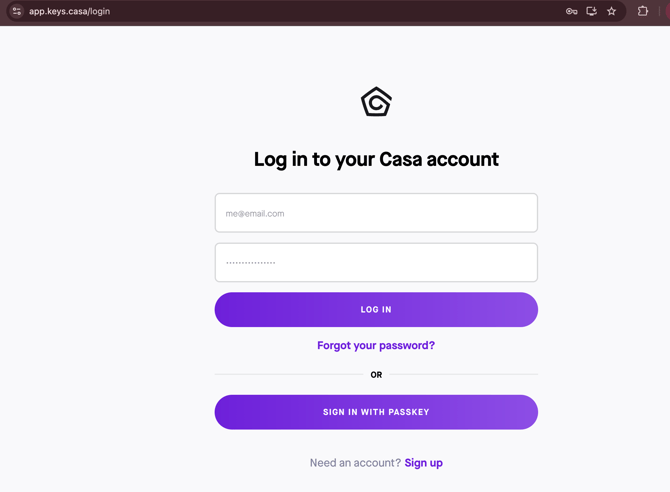
Once logged in:
-
You will see your User Dashboard
-
The Loans tab will appear only after:
-
You have signed a loan contract, and the loan is ready for the collateral deposit
-
The loan has been entered into Casa’s system
-
If your loan is active and you do not see the Loans tab, please contact Casa Support.
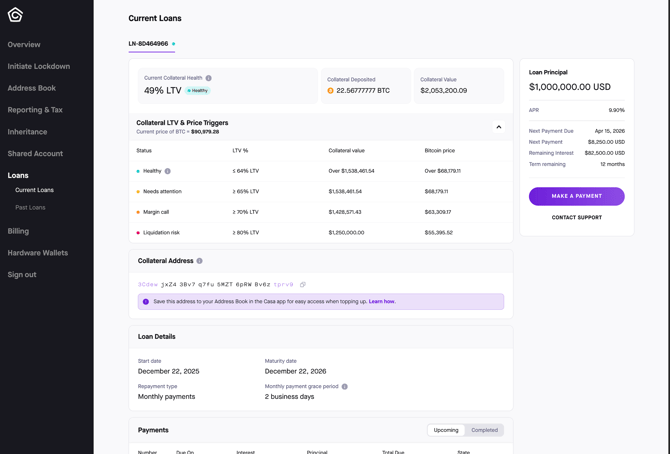
-
The Loans tab is not visible for users without an active loan
-
2FA must remain enabled to retain access
-
Loan information may take a short time to appear after contract execution
If you’re having trouble accessing your dashboard or don’t see your loan information, reach out to help@team.casa and we’ll be happy to help.