
TL;DR
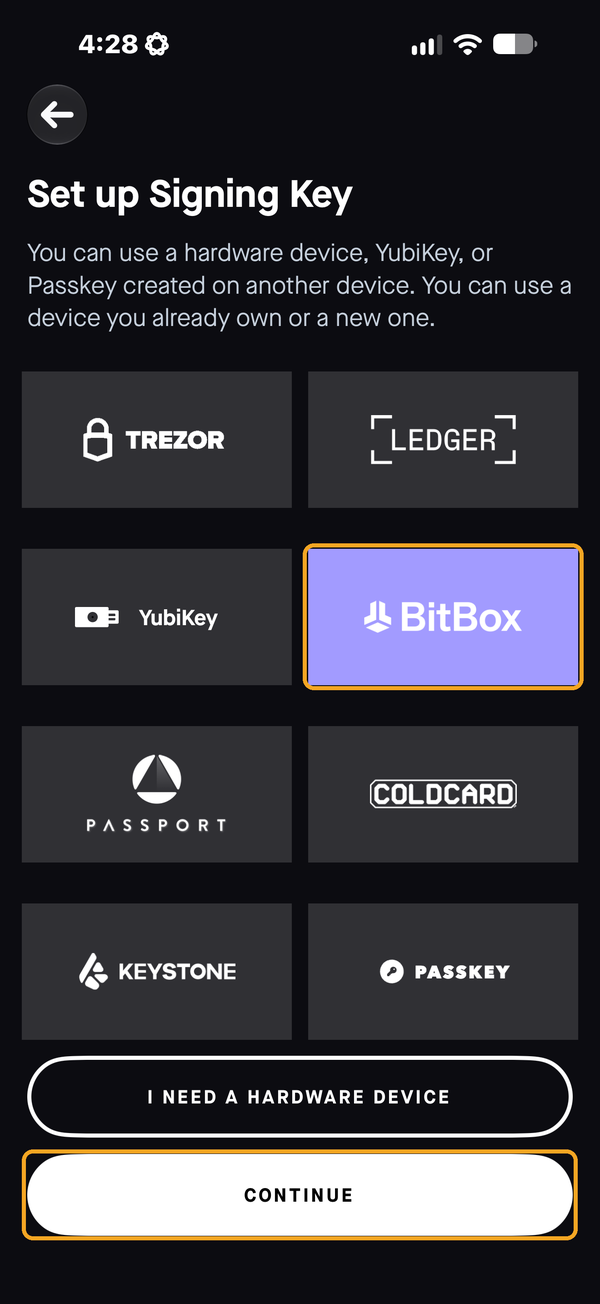
- In the Casa app, choose the key you want to set up and select BitBox.
- Open the "Connect your device" email on your computer in Google Chrome.
- Plug in your BitBox02, allow the connection, and unlock it with your password.
- Confirm the pairing code matches on your BitBox02. Your Casa app updates automatically.
Before you begin
- A BitBox02 that is already set up, with its backup stored somewhere safe
- Your BitBox02 device password
- BitBox02 firmware that meets the minimum on our supported devices and firmware page (you can update firmware in the BitBoxApp)
- A computer with Google Chrome (recommended). The BitBox02 connects to the browser over USB, which Safari and Firefox do not support.
- A free USB-C port, or the adapter that came with your BitBox02
- Your phone with the Casa app
Important: Fully quit the BitBoxApp on your computer before you start. If the BitBoxApp is open, it holds the connection to your BitBox02 and Chrome will not be able to see the device.
Part 1: Start in the Casa app (phone)
Step 1: Select BitBox
In the Casa app, tap the key you want to set up. On a 3-key vault, tap "Set Up Hardware Key." On a 5-key vault, tap the Home, Office, or Safe key you are setting up.
On the Set up Signing Key screen, select BitBox, then tap Continue.
Step 2: Tap Continue
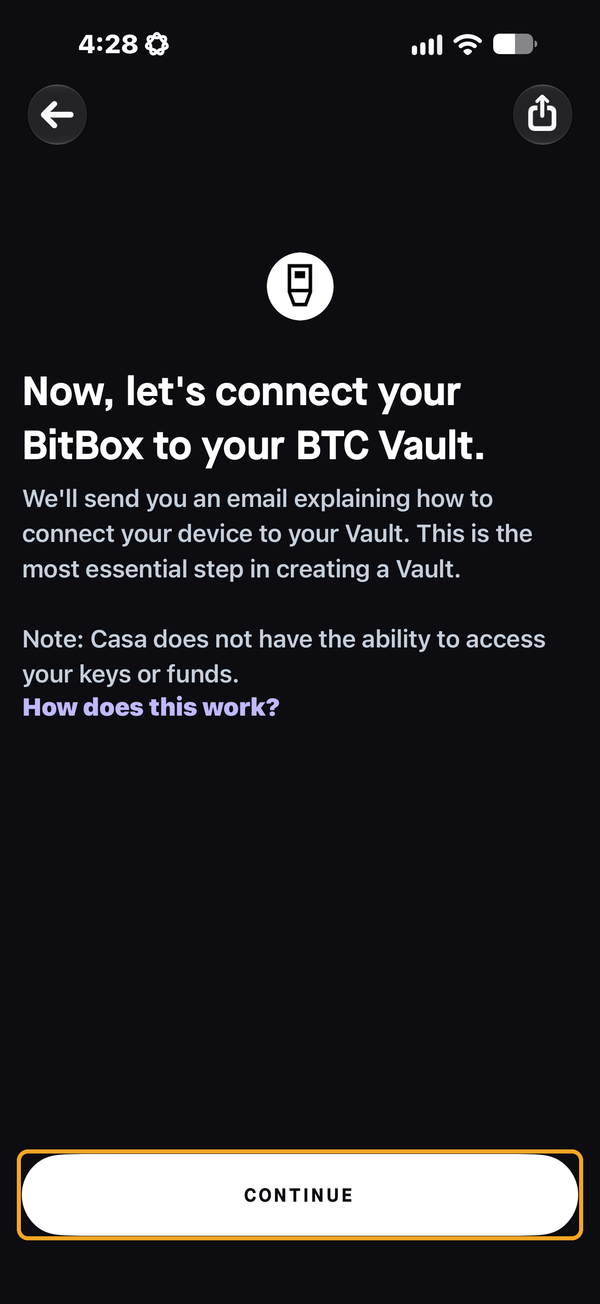
You'll see "Now, let's connect your BitBox to your BTC Vault." Tap Continue. Casa will email you a secure link to finish setup on your computer.
Step 3: Leave the app open and check your email
The app will show "Waiting for you to connect your hardware device." Leave this screen open and move to your computer.
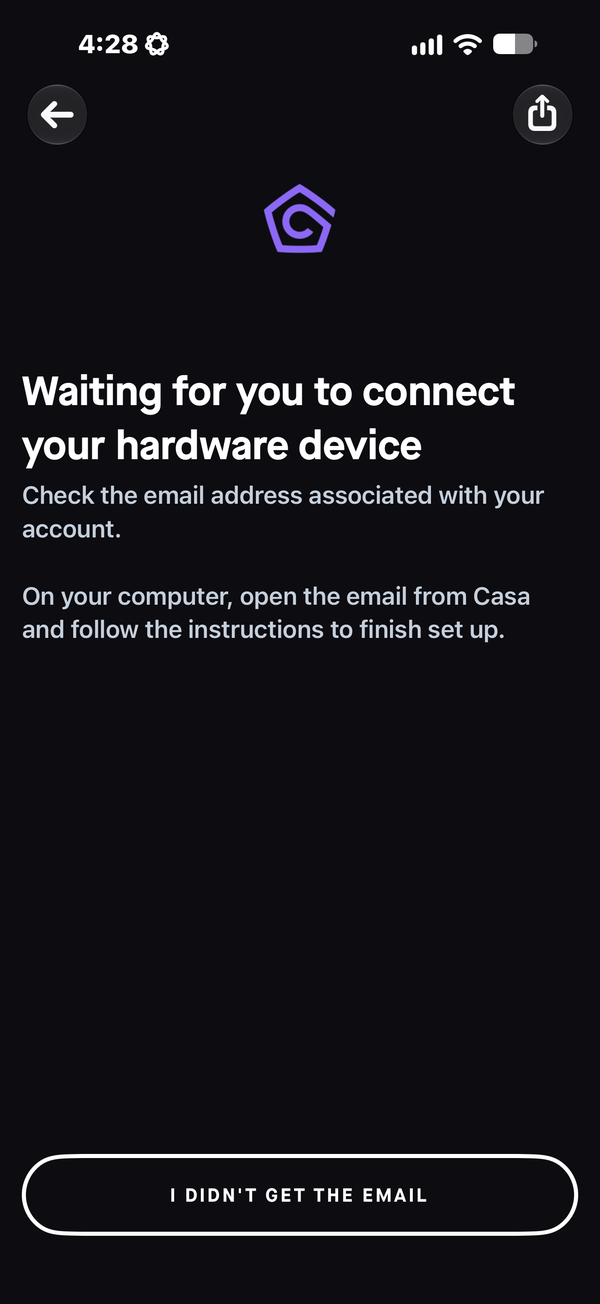
Tip: Don't see the email after a few minutes? Check your spam or promotions folder, then tap "I didn't get the email" to resend it.
Part 2: Connect your BitBox02 (computer)
Step 4: Open the email link in Chrome
On your computer, open the "Connect your device" email from Casa (no-reply@mail.keys.casa) and click the link. It should open a Key Setup page at app.keys.casa in Google Chrome.
Step 5: Plug in your BitBox02 and allow the connection
Plug your BitBox02 into your computer. If the screen is asleep, tap either side of the device to wake it.
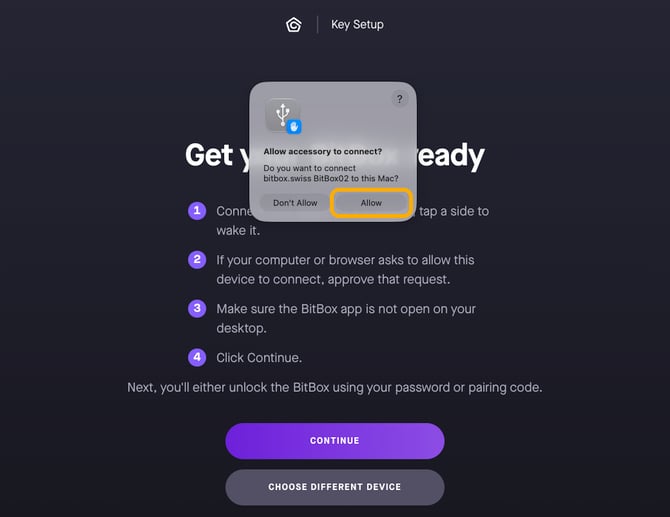
If your Mac asks "Allow accessory to connect?" for the BitBox02, click Allow.
Step 6: Click Continue
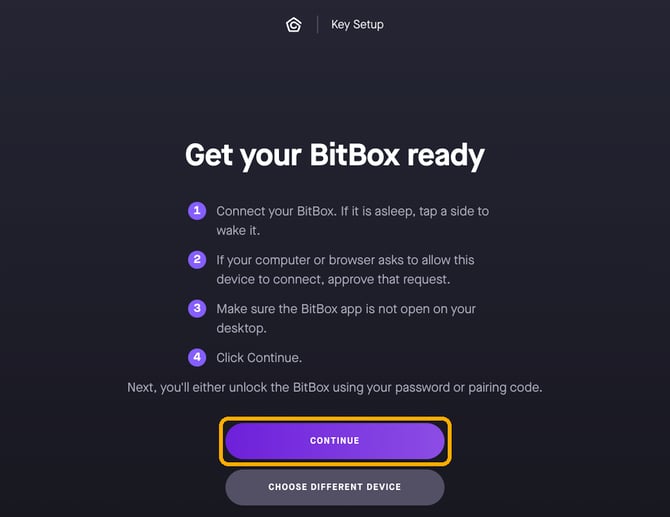
On the "Get your BitBox ready" page, double check that the BitBoxApp is closed, then click Continue.
Step 7: Select BitBox02 in the Chrome pop-up
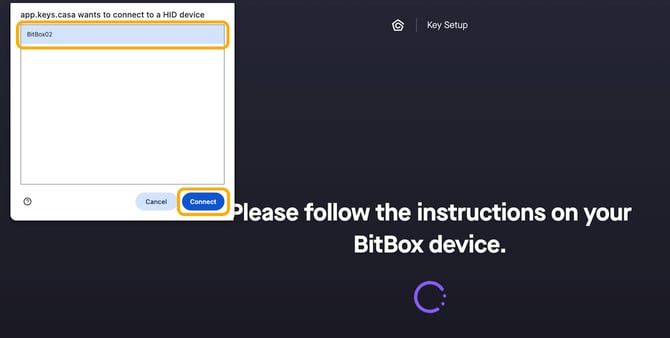
Chrome will show a pop-up in the top left: "app.keys.casa wants to connect to a HID device." Click BitBox02 in the list, then click Connect.
Step 8: Unlock your BitBox02 with your password
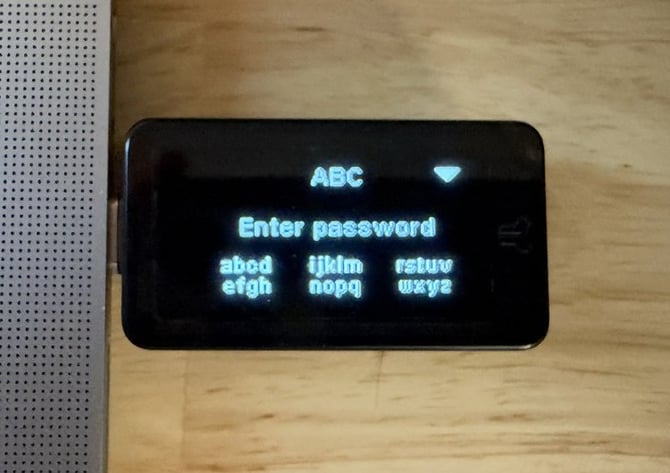
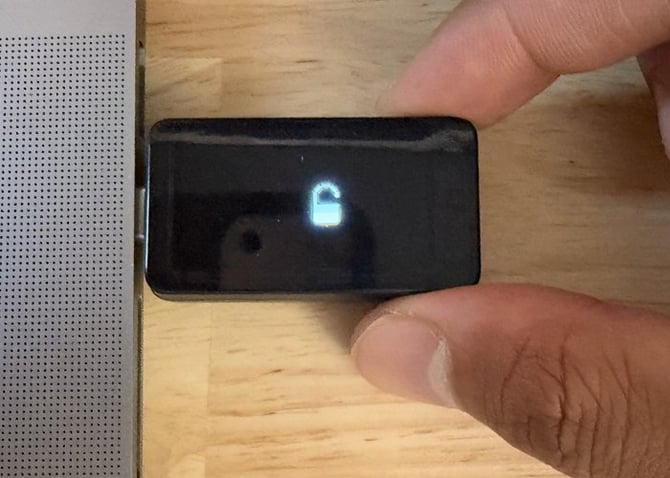
Your BitBox02 will show "Enter password." Use the touch sliders on the top and bottom edges of the device to enter your BitBox02 password and confirm it. When the password is accepted, you'll see an unlocked padlock.
Note: Enter your password carefully. After too many incorrect attempts, the BitBox02 resets itself and can only be restored from your backup.
Step 9: Confirm the pairing code
If prompted, the Casa page will show "Pair your BitBox with Casa" with a code. Your BitBox02 will show a Pairing code at the same time.
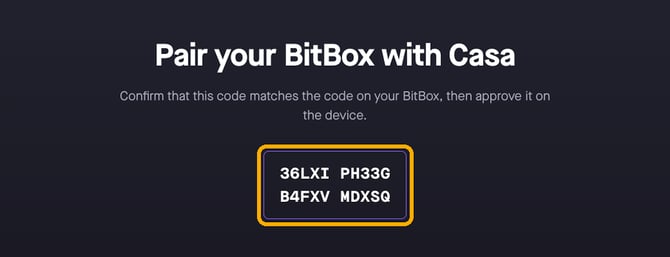
Compare the two codes character by character. If they match exactly, tap the checkmark (✓) on your BitBox02 to approve.
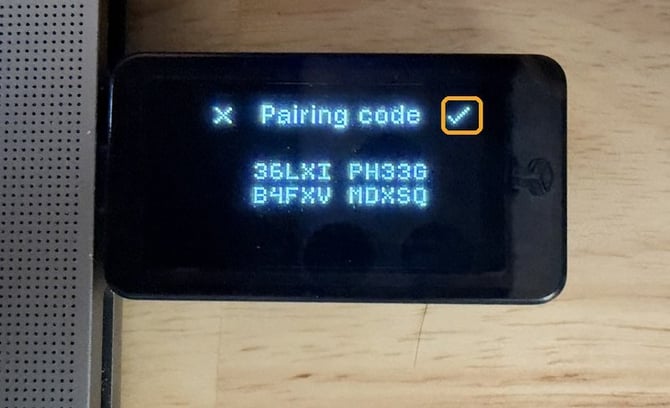
Note: The code shown in these screenshots is only an example. Your code will be different every time you pair.
Step 10: You're done
You'll see "Great Work. You have successfully set up your Signing Key." You can now unplug your BitBox02 and close the browser window.
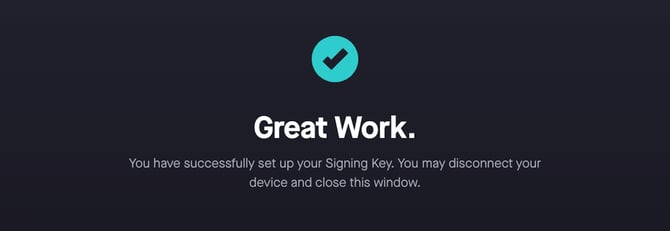
Your Casa app should automatically update to show that your BitBox02 has been added to your vault.
Troubleshooting
| What you see | What to do |
|---|---|
| BitBox02 does not appear in the Chrome pop-up, or no pop-up appears | Fully quit the BitBoxApp (including from the menu bar or system tray), unplug and reconnect your BitBox02, and make sure you are using Google Chrome. Try a different USB port or cable if needed. |
| You clicked "Don't Allow" on the Mac accessory prompt | Unplug and reconnect your BitBox02 to see the prompt again. If it doesn't reappear, check System Settings > Privacy & Security > Allow accessories to connect. |
| The page is stuck on "Please follow the instructions on your BitBox device" | Look at your BitBox02. It is likely waiting for your password or pairing approval. If the screen is dark, tap a side to wake it. |
| The pairing codes don't match | Tap the X on your BitBox02, unplug it, and contact Casa Support. Do not approve a code that doesn't match. |
| You didn't receive the setup email | Check spam or promotions, then tap "I didn't get the email" in the Casa app. |
| The setup link no longer works | Go back in the Casa app and start the BitBox setup again to get a new link. |