-Feb-15-2023-02-29-15-7102-PM.png?width=120&height=40&name=Untitled%20design%20(8)-Feb-15-2023-02-29-15-7102-PM.png)
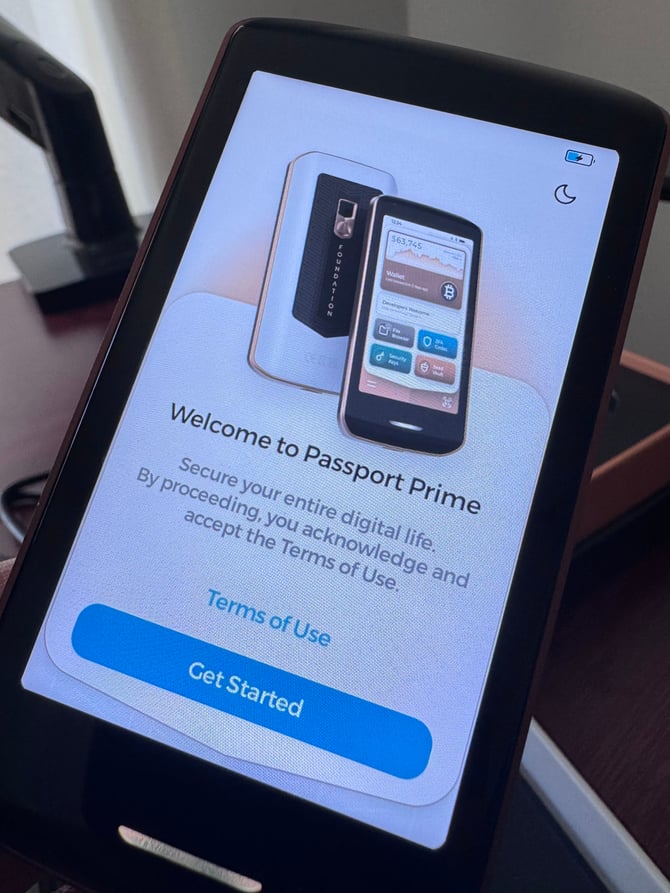
Before you start: your Passport Prime needs to be initialized first. That means the PIN is set, the Master Key is created, and a backup is complete, following Foundation's official Passport Prime Setup Guide. The device's first-boot welcome screen looks like this:
If you haven't completed that setup yet, follow the Foundation guide above before starting the steps below.
Step-by-step: Connect Passport Prime to Casa
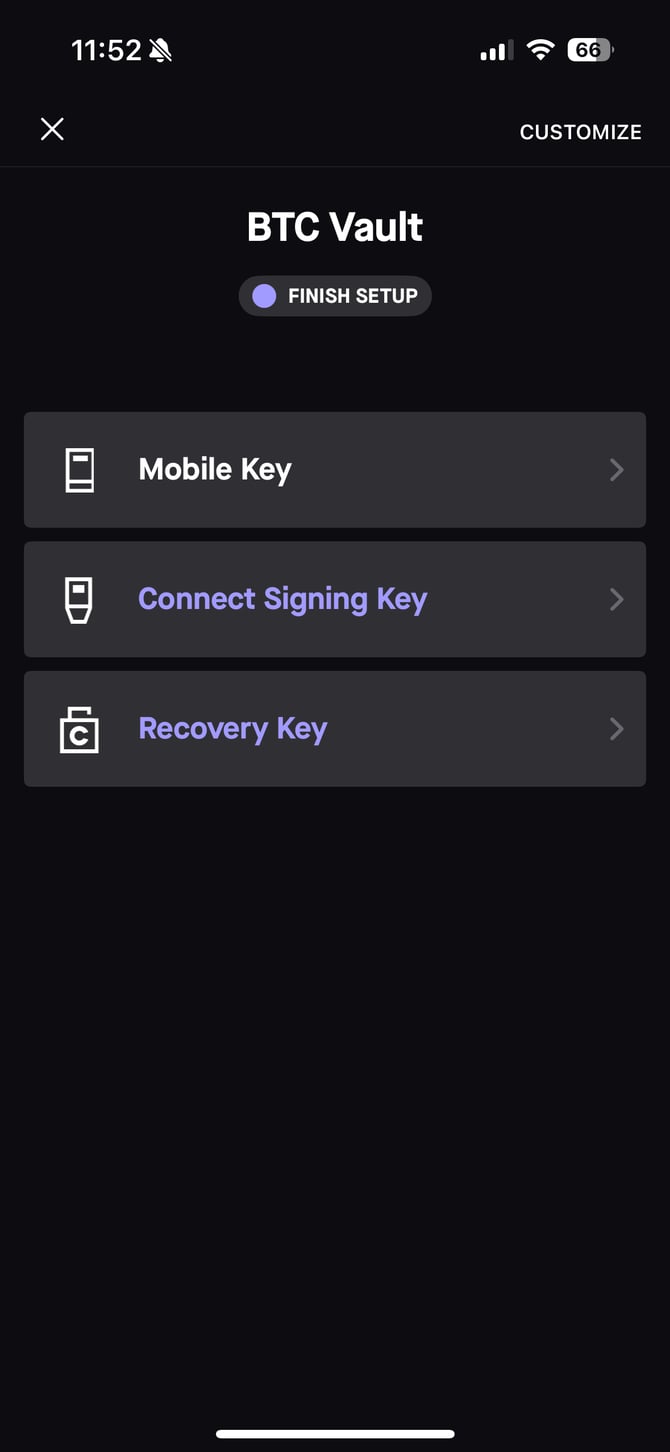
1. Start by tapping 'Connect Signing Key' in Casa
Open your BTC Vault in the Casa app and tap Connect Signing Key.
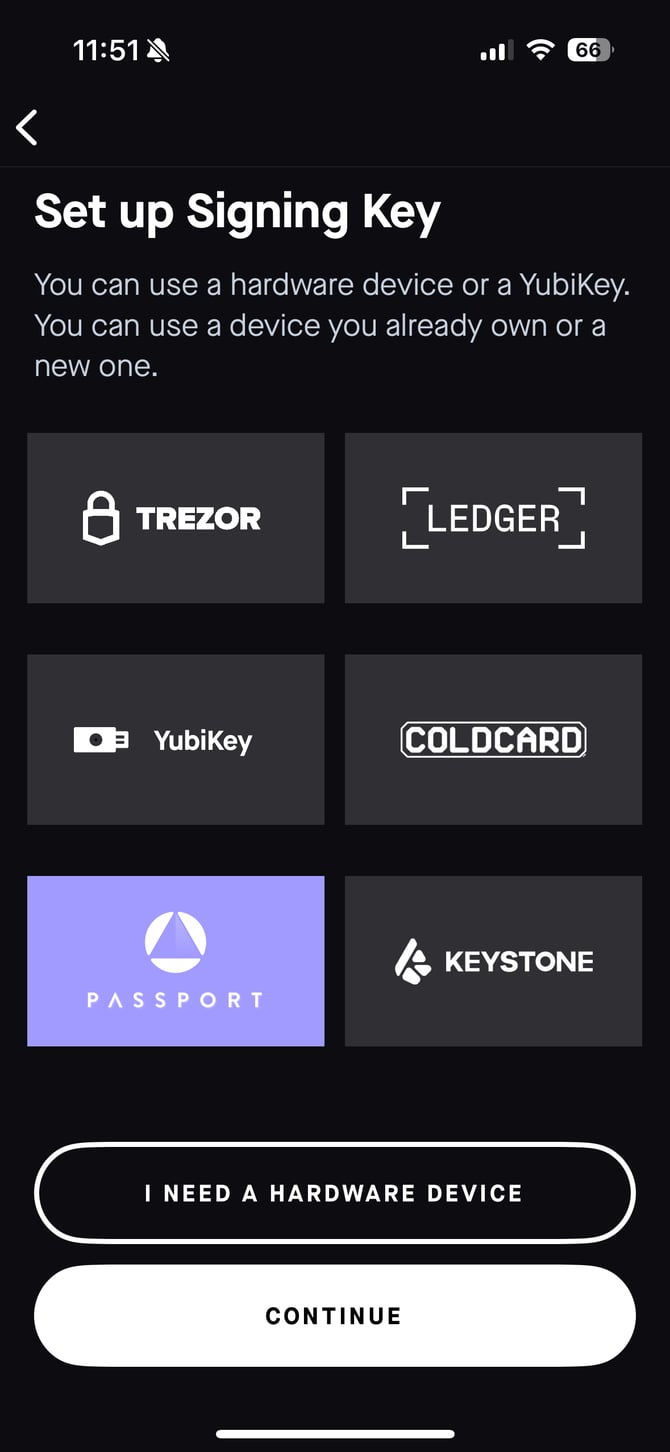
2. Choose Passport
On the Set up Signing Key screen, tap Passport.
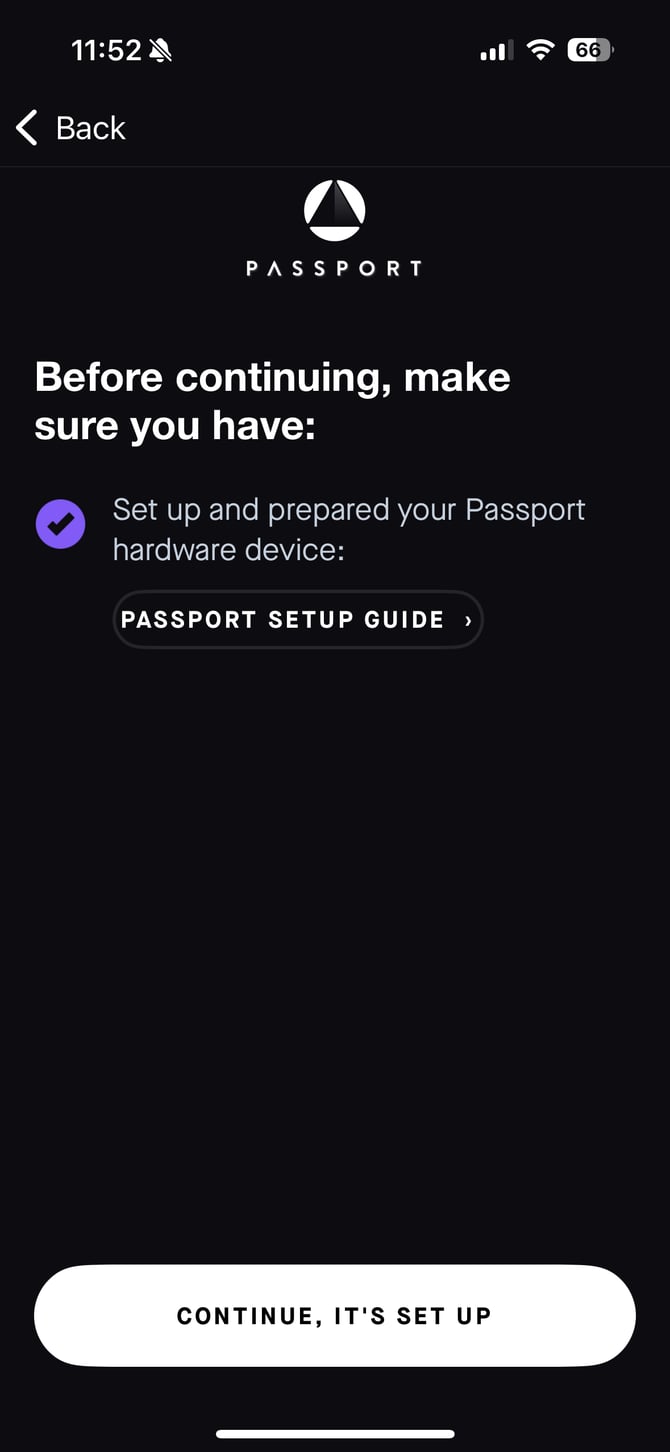
3. Confirm Passport Prime is set up
Casa will ask you to confirm your Passport hardware device is set up and prepared. If it isn't yet, tap Passport Setup Guide first and follow Foundation's instructions. Once it's ready, tap Continue, it's set up.
4. Get ready to scan
Casa will show: "Next, we're going to scan the QR code from your Passport device." Tap Continue.
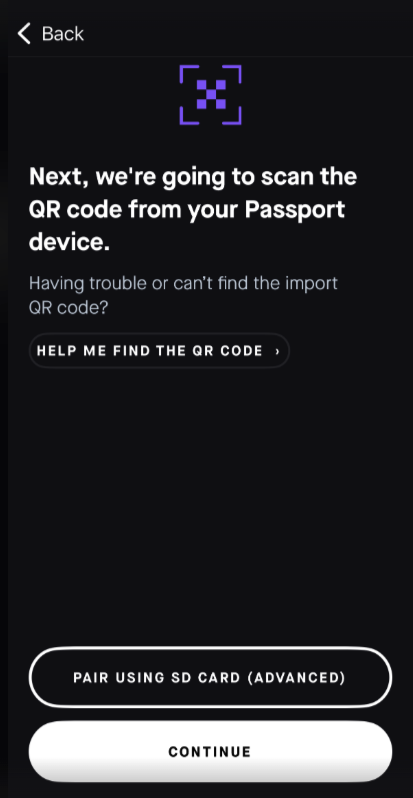
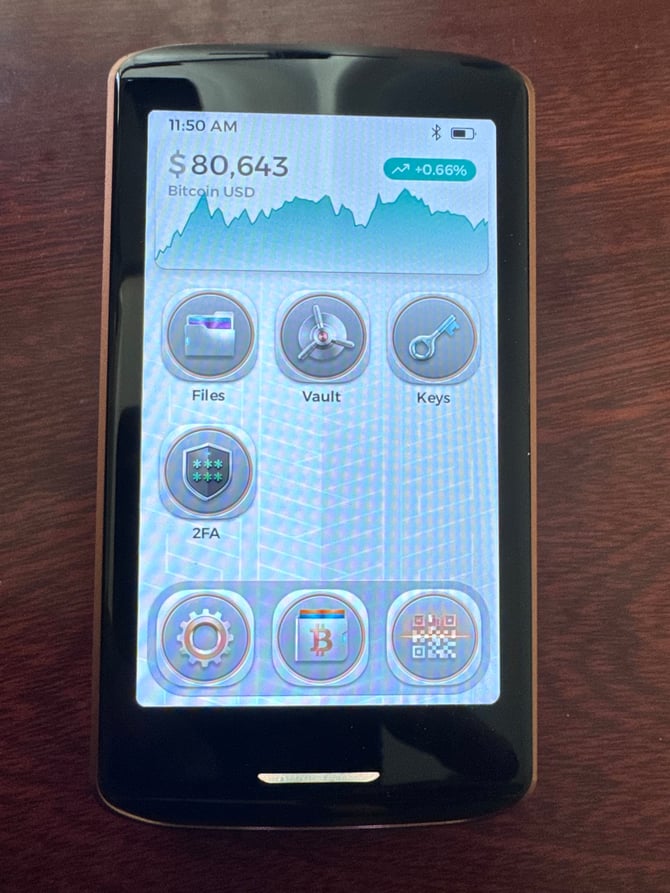
5. Open the Bitcoin wallet on Passport Prime
On Passport Prime, tap the Bitcoin wallet icon in the bottom row of the home screen.
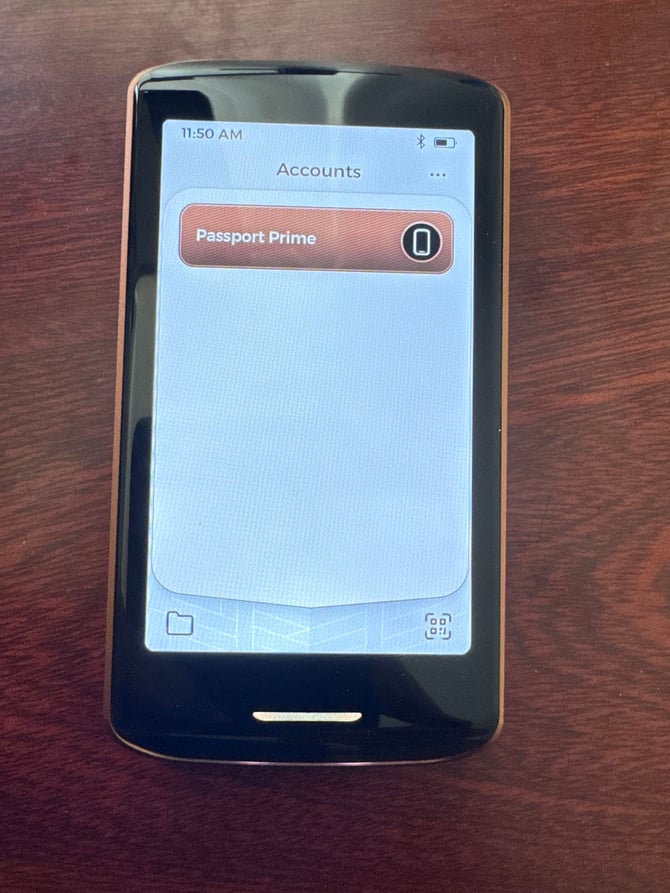
6. Start Connect Wallet
Tap Passport Prime in the Accounts list.
The account expands with three options. Tap Connect Wallet.
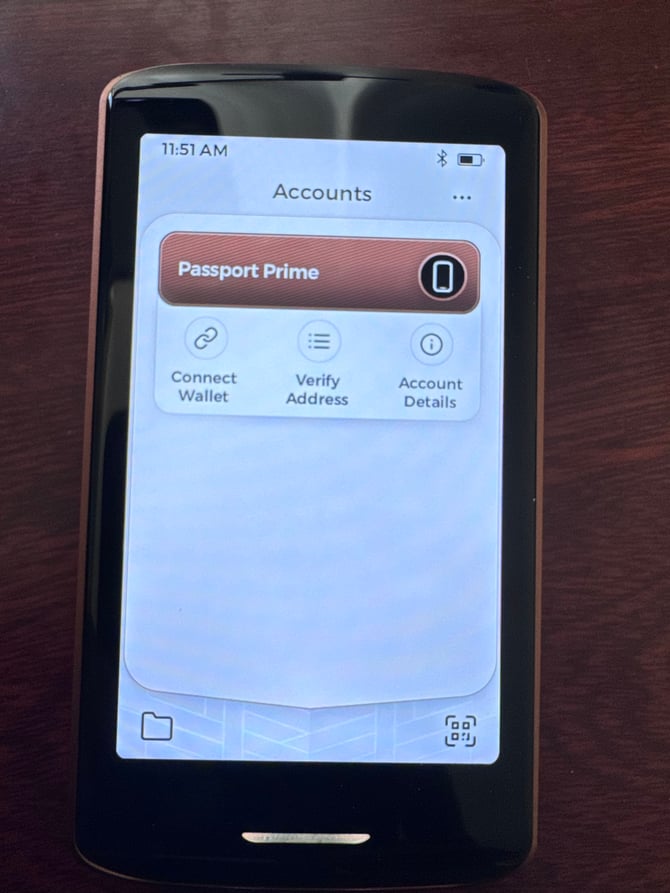
7. Select Casa
From the list of wallets, select Casa.
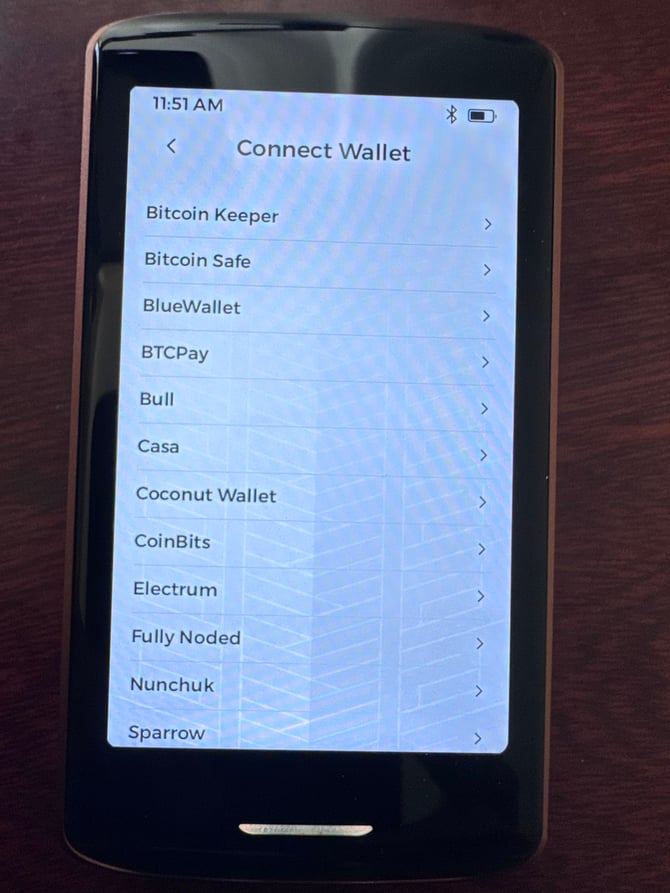
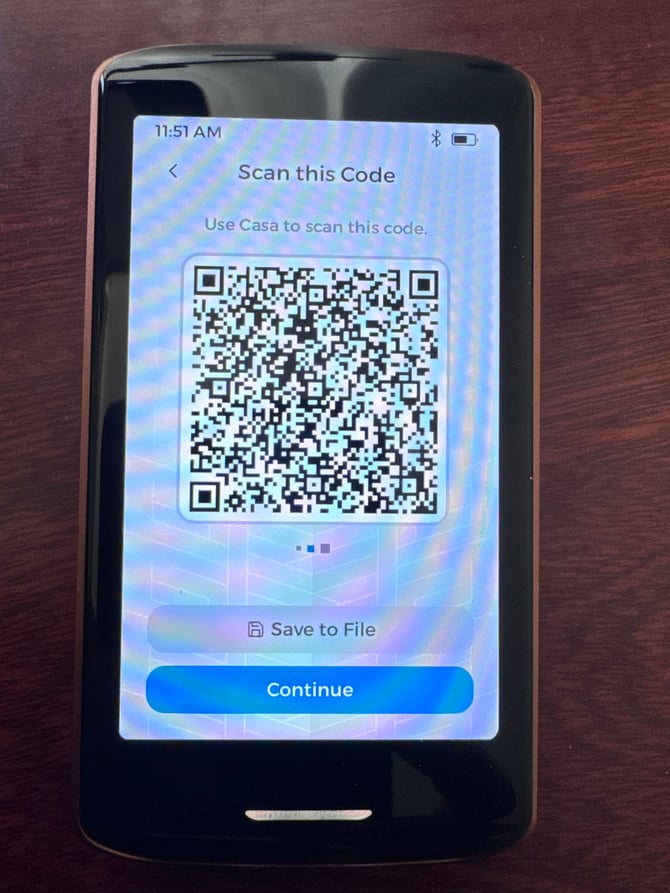
8. Scan the code from Passport Prime
Passport Prime will display a QR code that reads Scan this Code, Use Casa to scan this code. Hover your phone's camera (in the Casa app) over it to scan.
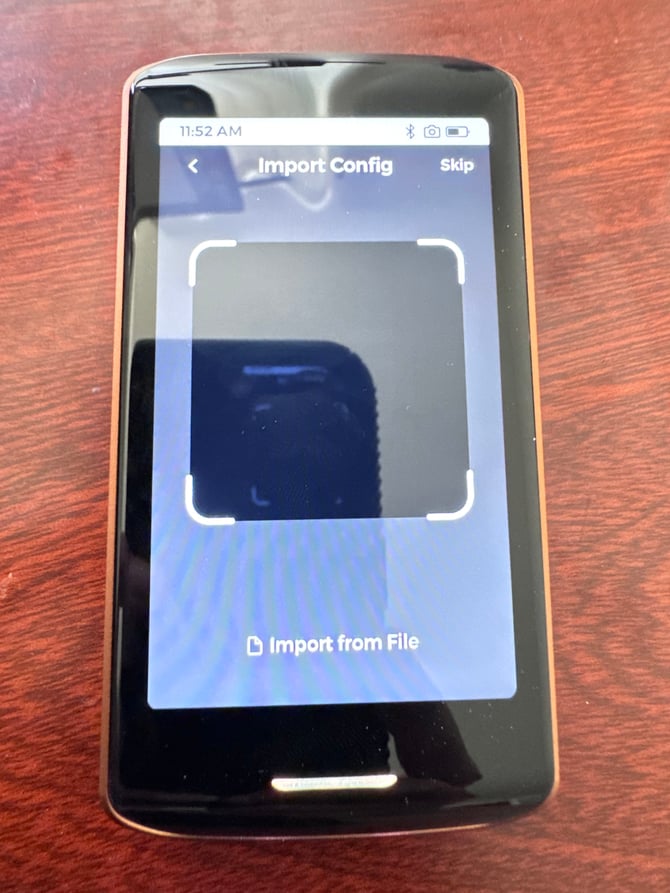
9. Import the config on Passport Prime
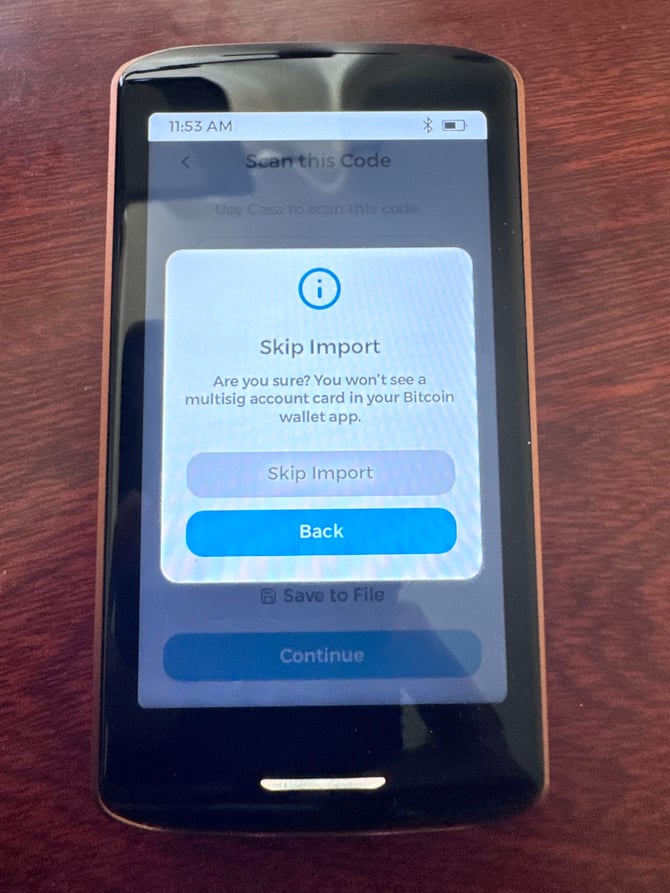
Passport Prime will then show an Import Config screen to scan a QR code back from the Casa app. Skip this for now by clicking the Skip button in the upper right hand corner.
Tap Skip Import. You will import your wallet descriptor once you complete the full setup of your Casa vault
10. Finish setting up the rest of your vault
Before moving on, complete the rest of your vault setup:
- 3-key vault (3KV) with Mobile Key: add your recovery questions and answers.See this article for details on the 3KV recovery key: https://support.casa.io/knowledge/casa-recovery-key
- 5-key vault (5KV): make sure all of your signing keys are added and your Casa Recovery Key is set up before proceeding to the next step.
11. Import your wallet descriptor to Passport Prime
On Passport Prime, tap the light bar at the bottom of the screen to return to the main screen, then tap the QR code icon in the bottom right menu.
In the Casa app, select Deposit funds, then tap the three dots in the top right corner to bring up your wallet descriptor. Scan it with Passport Prime.
Once both scans complete, the Passport Prime signing key is added to your Casa account.